Flash Manager Guide
Flash Manager in AWE Server
The Flash Manager tool included in AWE Server enables users to easily manage files in persistent storage on targets that support flash file systems.
An alternative to loading an AWB for stand-alone operation is to store the .awb contents in a C array and compile it into an application directly. This method can be used on targets with or without a flash file system. For more information, see section 2.3.2 of the AWE Core – Integration Guide.pdf.
Preparing AWB files for loading via Flash Manager
If you wish to store the binary for your layout or presets using an AWB file, you will need to generate the AWB from your signal flow layout.
1. Be sure that AWE Server is connected to the intended target device.
2. Load the AWD, make sure you can build and run it, then select ‘Tools -> Generate Target Files’.
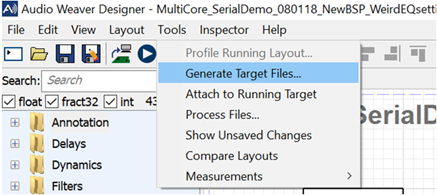
-
Select the ‘AWB’ target file checkbox and browse to the directory to which the .awb file will be saved. Change the ‘Save Basename’ field to a name that is less than 16 characters in length, then hit the “Generate” button. It will then compile the .awb file.
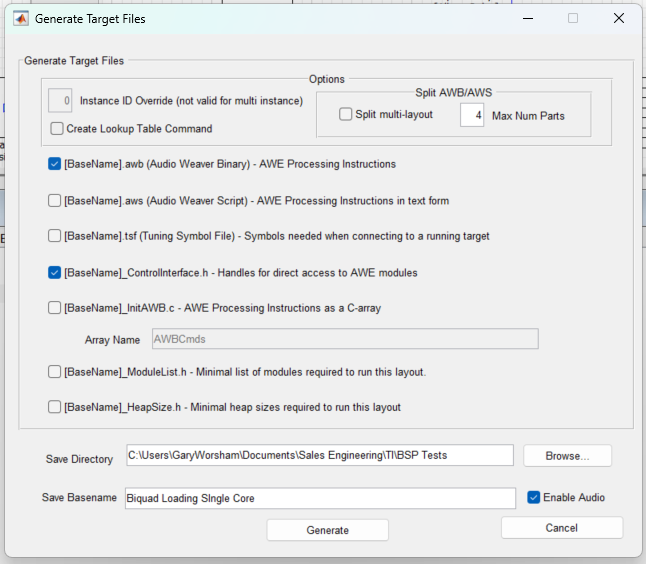
-
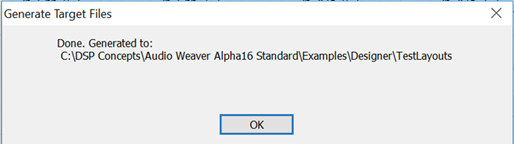
Once the .awb file has been successfully generated, the following window will appear:
Flashing the file to your target
- If necessary, in AWE Server, select ‘Target -> Change Connection’ and connect to your target with the appropriate option.
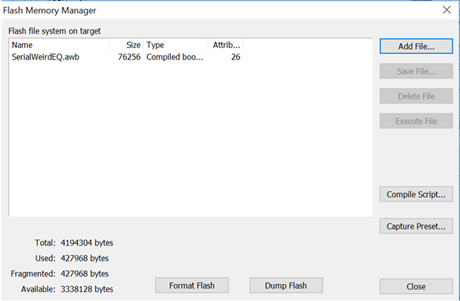
- In AWE Server, select ‘Flash -> Flash Manager’. Then press “Add File” button.
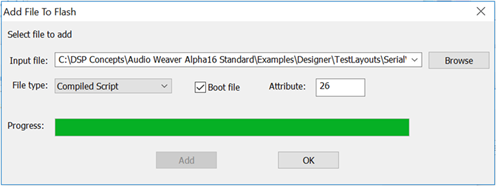
- Browse to the previously created .awb file and select it as the input file. Ensure that the file type is “Compiled Script” and check the box next to “Boot file” to designate this file to be used at boot-up (attribute = 26). Click the “Add” button to load the file into memory.
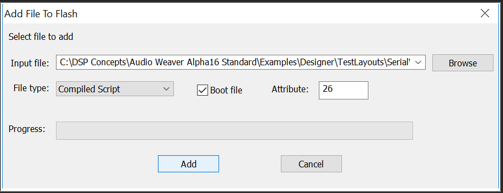
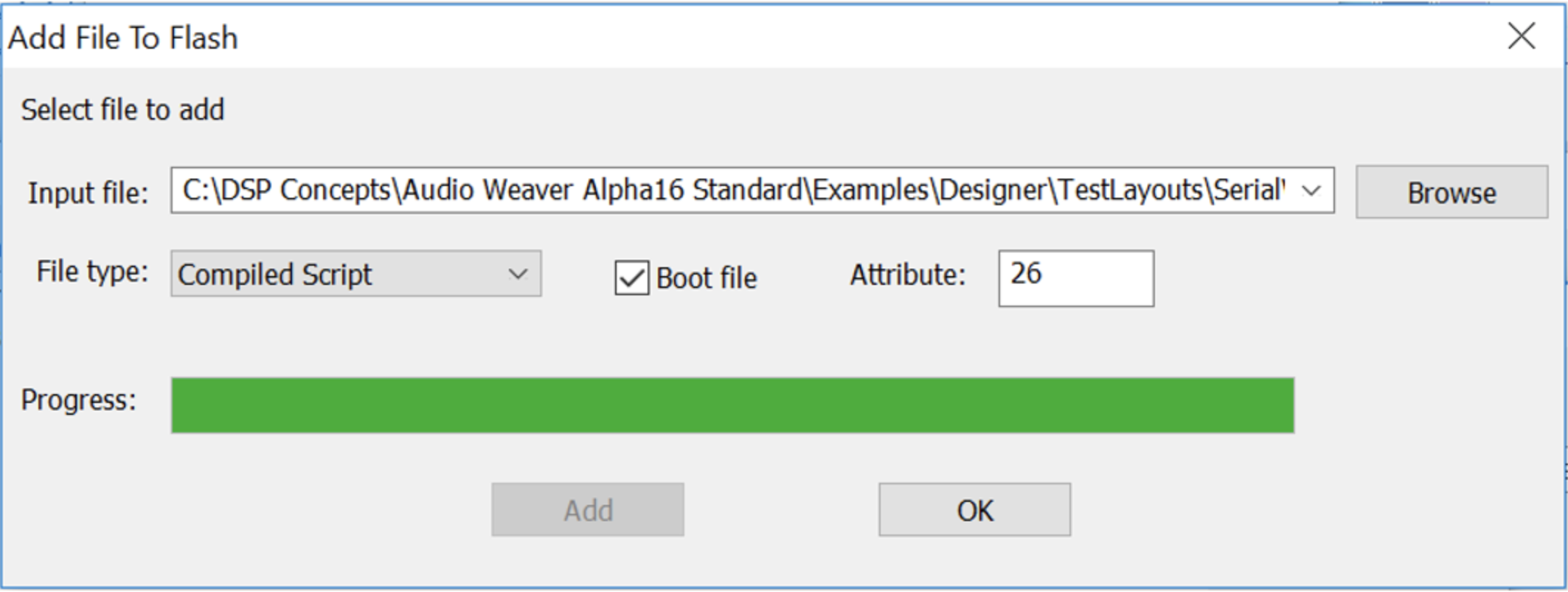
- Once the upload completes, click “OK”.
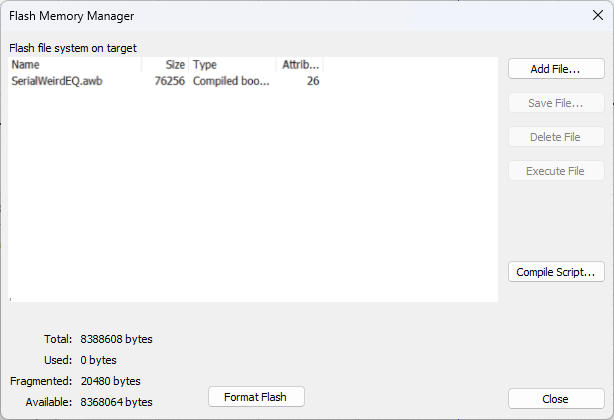
- The file will show up in the list “Flash file system on target” in the Flash Manager window.
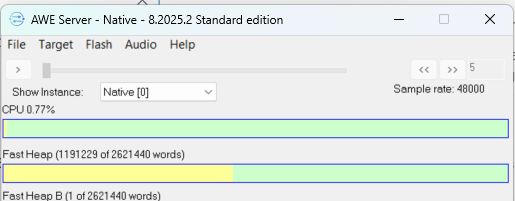
- When you reset your target hardware and reconnect AWE Server to it, you should see a non-zero CPU % and heap allocated in the AWE Server, which indicates that the layout is indeed running.
WAV and OGG audio files
[TODO show WAV example]
Loading files using Flash Manager.
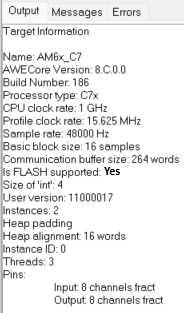
- Confirm that your connected target supports the flash file system.
- In AWE Server, select ‘Flash -> Flash Manager’.
TODO: insert image of Flash Manager - Press the “Add File” button.
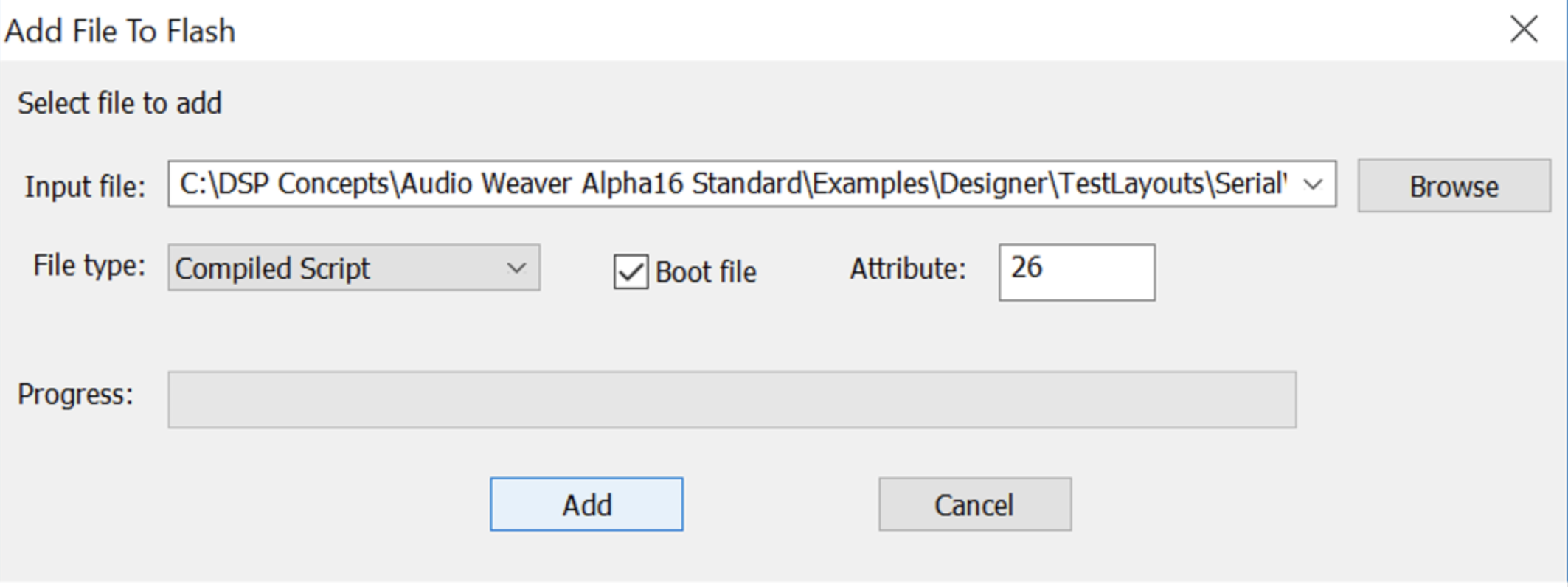
- Browse to the desired file and select it as the Input file.
- Set the File Type and Boot file checkbox according to the table below.
- Click the "Add" button to upload the file to Flash.
- Once progress completes, click "OK".
- After the file has been added, it will show up in the list “Flash file system on target” in the Flash Memory Manager window.
Typical file types and attributes
[TODO - confirm table]
| File Type | Boot? | Attribute |
|---|---|---|
| AWB, default load | Y | 026 |
| AWB, preset | N | 104 |
| WAV/OGG | N | 104 |