AWE Designer Tools
Generate Target Files
Audio Weaver can generate “Target Files” that can be used with an AWE Core integration. For example, you can compile your Audio Weaver layout to an AWS file which will be a list of all the Server commands that make up a design.
To generate target files, first create a valid design and then select the ‘Tools → Generate Target Files’ menu item. A dialog will prompt you to select files to generate, configure generation options, and choose an output location. Click Generate to create all of the selected files.
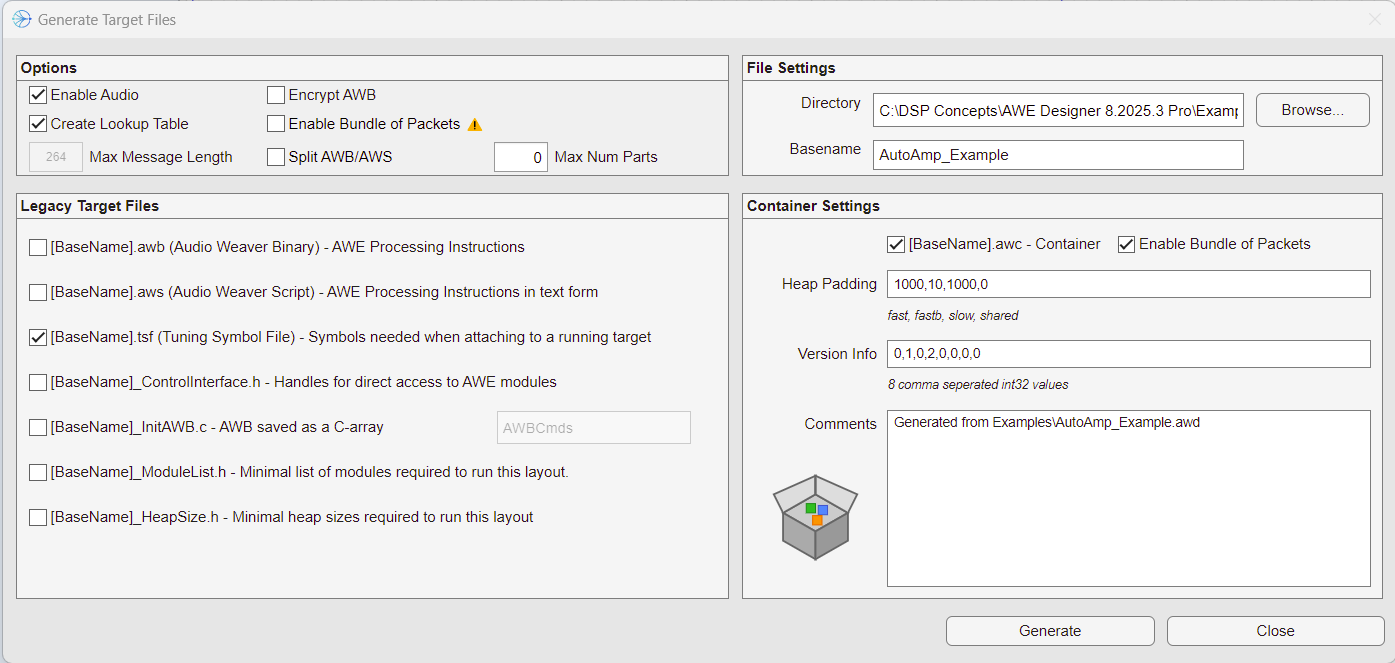
Options

| Option | Description |
|---|---|
| Enable Audio | Enables audio after the AWB or Subcanvas is loaded. If not set, no signal will actually pass through the canvas. This is almost always checked. |
| Create Lookup Table | This adds a create_lookup command to AWS/AWBs instructing the AWE Core library to use a lookup table to speed up finding modules based on their objectID. Enabling uses slightly more memory but can speed up loading and module access operations significantly. This can be controlled from MATLAB with the AWE_INFO.buildControl.createLookup value. We recommend that you always set this to 1. |
| Max Message Length | Read-only entry showing the maximum message length, in 32-bit words. This is set using AWE Designer's "File->Global Preferences" dialog in the "Compile" section. For portability, we recommend keeping this at 264. |
| Encrypt AWB | When enabled, generates encrypted AWB files. Encrypted AWBs protect proprietary information in layouts. |
| Enable Bundle of Packets | Checking this causes the generated AWB files to use message bundles to speed up loading of the design. Note that this is only compatible with AWE Core versions AC-8.D.13 and later - use with caution. |
| Split AWB/AWS & Max Num Parts | Only enabled for multi-instance layouts, this supports creating multiple AWB/AWS files, one per instance up to Max Num Parts. The remaining instances will all be grouped into a single target file. This feature is useful for early loading (aka progressive loading), where some instances need to be loaded before the rest of the system has booted. |
| Instance ID Override | Only visible if attached to a single instance or multi-canvas target. This can be used to overwrite the instanceId used for generated AWB files. Useful for generating target files while not connected to the final target system. |
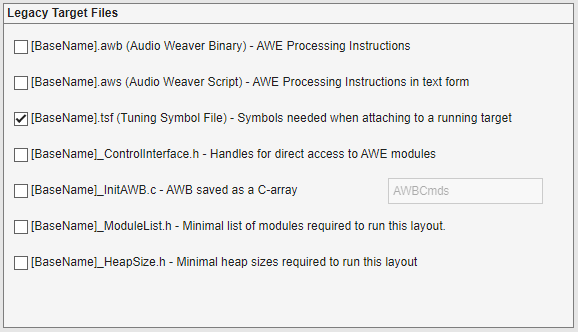
Legacy Target Files
| Legacy Target Files | Description |
|---|---|
| [BaseName].awb | AWB stands for Audio Weaver Binary. An AWB is a compiled binary version of a layout and can be loaded directly on a target with a filesystem. AWB’s are most commonly used in production, as they can live directly on the target without any interaction with the PC. |
| [BaseName.aws] | AWS stands for Audio Weaver Script. The AWS is the set of plain text commands that makes up an Audio Weaver layout. An AWS can be compiled into an AWB, or can be executed directly through the AWE Server (File -> Execute Script). |
| [Basename].tsf (Tuning Symbol File) | TSF stands for Tuning Symbol File. TSF Files contain the symbols needed when connecting to a running target. See the Attach to Running Target section for more details. |
| [Basename]_ControlInterface.h | The Control Interface file contains handles for direct access to AWE modules via the AWE Core Control Interface APIs. Note that symbols are only generated for modules with assigned custom objectIDs (> 30000). See the “Control Interface” section of the AWE Core API for more detail. |
| [Basename]_InitAWB.c | The InitAWB file is the AWB represented as a C array. Two files will be generated (H file and C file). The AWB C array can be loaded directly on target via the AWE Core API. When selected, you can edit the "Array Name" field to specify the variable name in the generated C code. |
| [Basename]_ModuleList.h | The ModuleList.h file contains a list of modules used in a layout. This allows a BSP author to build an AWE Core target with only the minimum set of modules required by a production layout, greatly reducing the memory footprint from unused modules. |
| [Basename]_HeapSize.h | Minimum heap sizes required to run this layout. This allows a BSP author to build an AWE Core target with the exact amount of heap memory for a given layout. Note that due to potential differences in memory requirements for each platform, HeapSize.h may not be portable between targets. Only rely on this being accurate if it is generated while connected to the final target. |
Note
When connected to a multi-instance target, separate files will be generated for each instance, using the file name template [Basename]_HeapSizeInstX.h where X is the 0-based instance number.
For more information about how to use these target files, please see the AWE Core 8 API Quick Start.
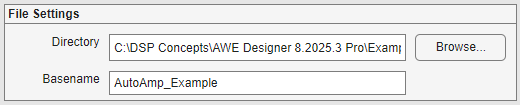
File Settings
| File Settings | Description |
|---|---|
| Directory | The location where the generated files will be written. Click on "Browse" to select a new location. |
| Basename | The file name to which the various extensions (e.g. ".aws") will be appended. |
Container Settings
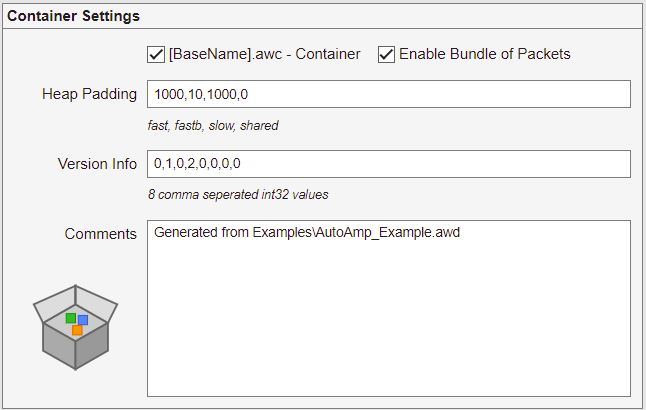
Select the "[BaseName].awc" checkbox to generate a container file for use with the Subcanvas feature. See the Subcanvas User Guide for more details.
| Option | Description |
|---|---|
| Enable Bundle of Packets | Checking this causes the generated AWB file inside the AWC to use message bundles to speed up loading of the design. See Subcanvas Bundle Packets for more details. Note that this setting is independent from the Enable Bundle of Packets in the Options section - this setting applies only to Container files. |
| Heap Padding | Allows you to create the heap sizes beyond what is needed for your IP. You may have to specify padding because Audio Weaver memory allocation varies slightly between Native module and the target you are deploying the IP on. |
| Version | 8 x int32 values which mark the version of the AWC. If there is a ver_info module in the layout, this module will be populated with these values, as well as the build data and time. |
| Comments | Free text which is incorporated into the generated AWC file |
Attach to Running Target
If a target BSP uses AWE Core to locally load an AWB, Designer can still connect to the target and manipulate that running layout without interrupting the ongoing processing. This can be extremely useful for troubleshooting, and is referred to as “Attach(ing) to a Running Target”
In order to “Attach to a Running Target”, the following conditions must be met
-
A tuning interface must be correctly implemented on the target BSP. (Some production-state BSPs will load a static AWB, but omit the tuning interface…this would preclude attachment)
-
A user must have corresponding AWD and TSF files for the exact AWB loaded on the target. This means that the AWB and TSF files must be generated from the exact same AWD/AWJ. Any differences in TSF/AWB/AWD files will cause unexpected behavior.
To Attach to Running Target,
-
Load the AWD and generate the TSF and AWB (or AWB array) files using Designer’s “Tools/Generate Target File” menu item. Minimize/close designer.
-
Load the generated AWB on the target via the AWE Core API loader functions.
-
With the layout successfully running, open AWE Server and connect to the target’s tuning interface.
-
Reopen the AWD in Designer, but do not run the layout. Instead, select “Attach to Running Target” from the Tools menu. The dialog will prompt for tsf file. Select the tsf generated from step 1. Remember, all these files must come from the same original AWD.
The layout on the target can now be tuned as if you had loaded it via Designer.
When you are done tuning, the target can be detached by selecting Designer’s “Tools/Detach from Target” menu item.
Module Testing
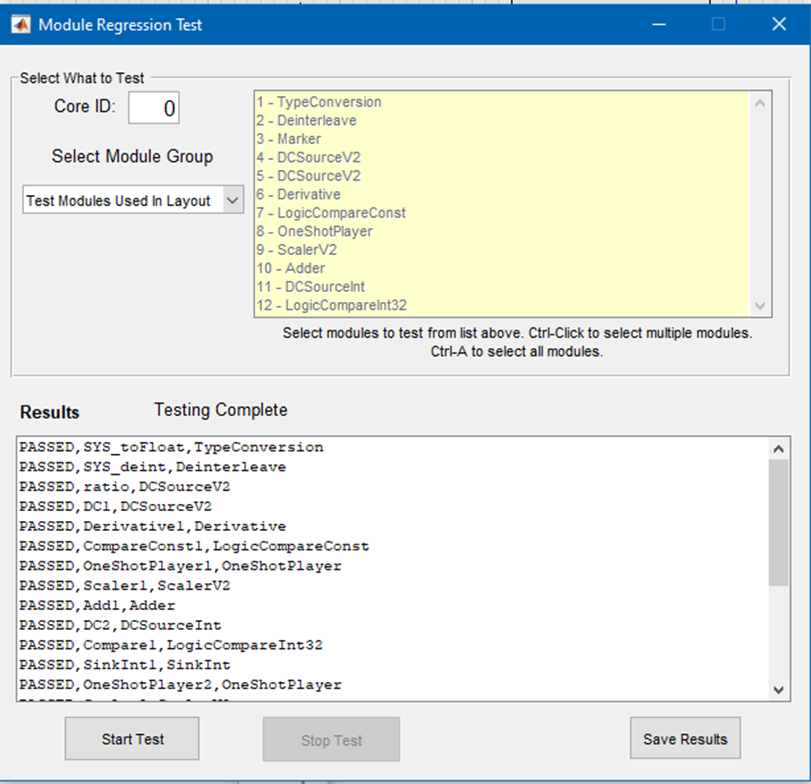
The Module Tests are used to verify that modules are properly implemented on a connected target. There are two types of tests that can be run from the Tools -> Module Tests menu: Regression Tests and System Tests.
Regression Tests are used to validate the implementation of each module on the target by processing generated input data and comparing it to a known output, usually generated by MATLAB. By selecting any of the “Module Pack” options, the regression tests can be run on the connected target for all the selected modules.
System Tests are used to validate that each module behaves as expected on the target, as configured in the layout. To run the system tests, select “Test Modules Used In Layout” from the menu.
The “Select Module Group” dropdown is used to choose the type of test or group of modules to run, and specific modules can be selected or de-selected using the generated table in the tool.
For multi-instance targets, the ‘Core ID’ (aka Instance ID) field can be used to select which AWE Core instance to run the tests on.
After selecting the “Start Test” button, the tests will be executed and the results will appear in the “Results” pane. The results can be saved to a CSV file using the ‘Save Results’ button.
Profiling
Designer offers a number of ways to profile computational and memory usage of a layout loaded on a target.
-
Real-Time Profiling: This tool collects average CPU and memory usage details of the running layout and of each module in the layout. Real-Time Profiling supports multiple clock-dividers and Multi-Instance targets, and results can be exported to .csv files.
-
Manual Profiling: This tool can report the same information as the Real-Time Profiling tool, but the data collection happens differently. Rather than querying the target while the layout is pumped in real time, this tool sends individual pump commands to the target and collects the profiling data based on this non-real-time processing. Manual Profiling can sometimes report more accurate profiling results than Real-Time Profiling, for example if any of the following are true:
- the CPU load required to run the layout on the target is greater than 100%
- the target does not have real-time audio processing implemented
- the system has a lot of pre-emption that can interrupt audio processing
-
Peak Profiling: While the layout is running on the target, the Peak Profiling tool queries the target’s average and peak CPU load for the user defined duration and plots the results. Peak Profiling supports multiple clock-dividers and Multi-Instance targets, and results can be exported to .csv files.
-
AWE_Server Profiling: The AWE_Server GUI shows a high level view of memory usage across each AWE heap, and the total % of CPU usage of the selected AWE Instance.
For more details on all of these types of profiling, see this application note Profiling in AWE Tips and Tricks
Show Unsaved Changes
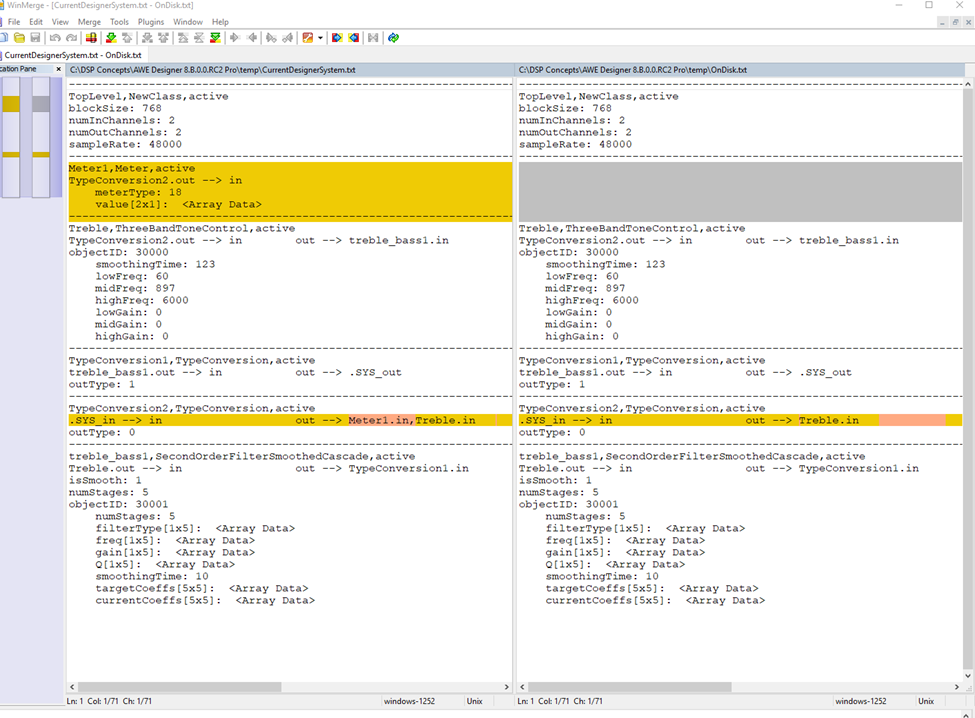
To see all the changes since the last save, select ‘Tools Show Unsaved Changes’ for a display using the diff tool the you set in the ‘Global Preferences’ Dialog.
Compare Layouts
Two layouts can be compared by selecting the ‘Tools → Compare Layouts’ menu item and selecting the AWD files associated with the layouts.
Diffing Systems
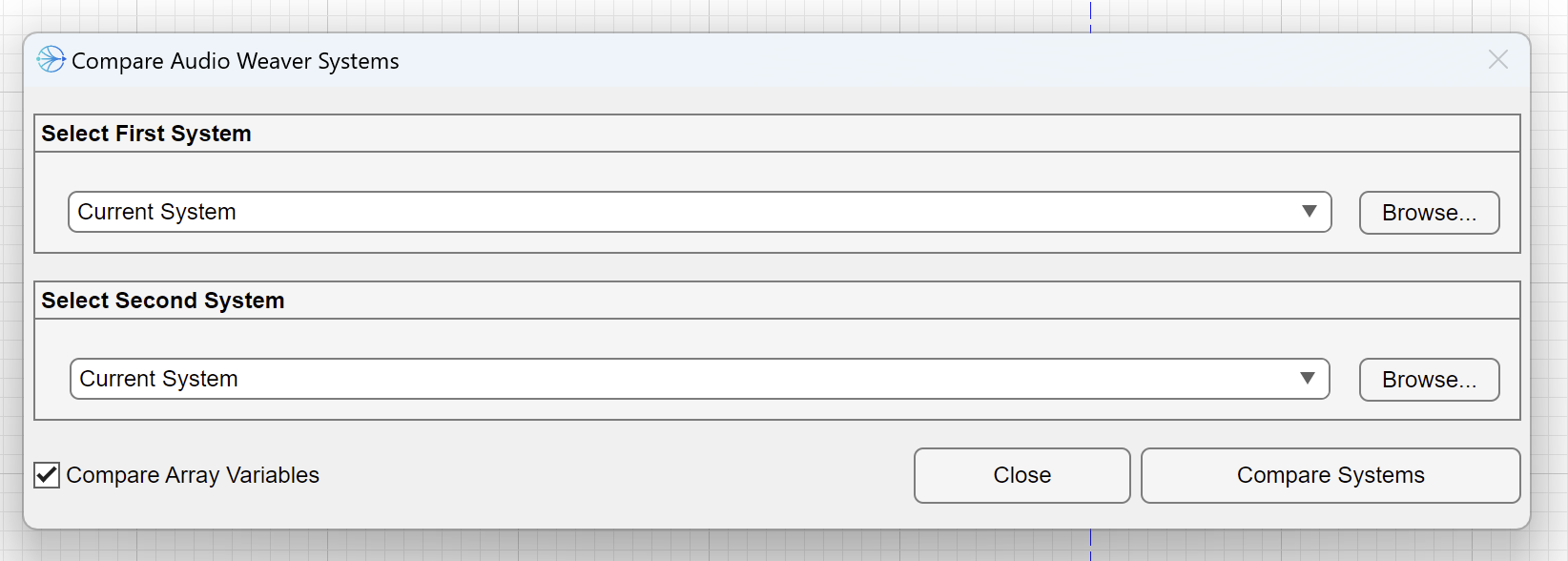
Audio Weaver layouts can also be compared using a ‘diffing’ capability. This can be useful for example to figure out changes between different versions of a layout during the design and tuning process. This functionality requires a Diff tool like WinMerge, to be installed. First specify your Diff tool under the ‘File → Global Preferences’ menu item, then use the menu item ‘File → Compare Systems’ to make the comparison between two different layouts.
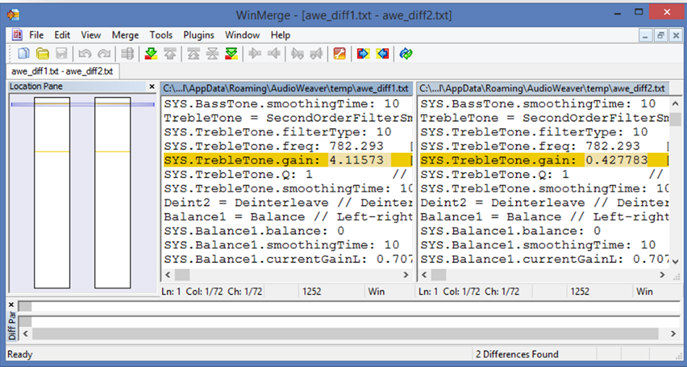
Another way to diff systems is to save the layouts in AWJ format. Because AWJs are plaintext JSON representations of a layout, any diff tool or text editor can be used to spot the delta between systems.
For quick diffing, LST files can also be generated / compared.
Measurements
Many modules have associated frequency responses. The measurement dialog measures the composite frequency response between two points in your signal processing layout. To set up a measurement, first place marker modules at the beginning and end points of the desired measurement path in the layout.
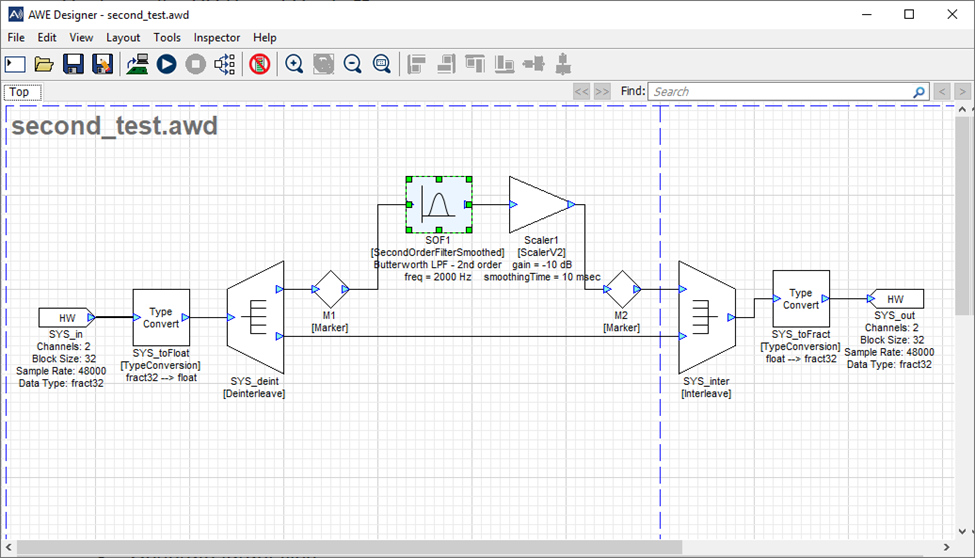
Then select the ‘Tools Measurement New Measurement’ menu item to get to the measurement dialog.
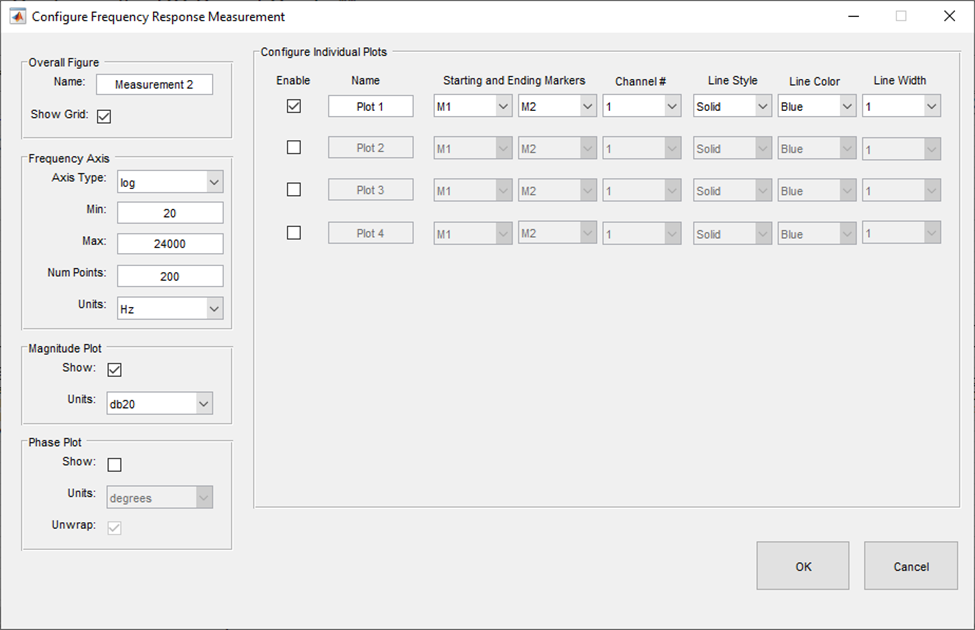
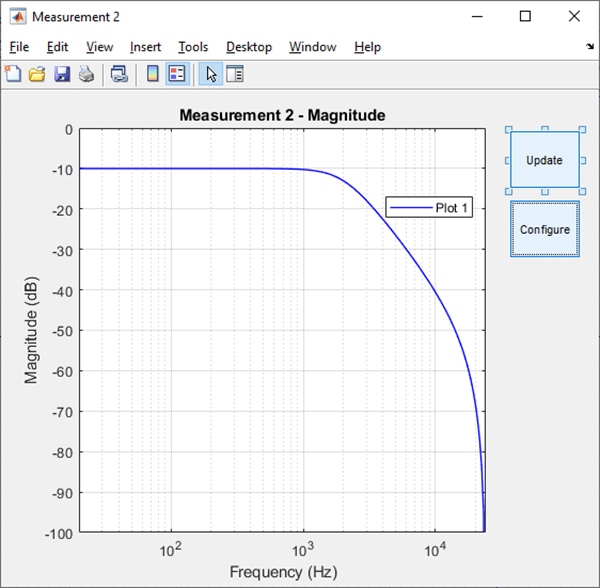
Here you can select all the properties of the measurement display. When you push the OK button, an editable measurement graph will be displayed.
Tuning Interface Test
This function performs diagnostic measurements on a connected tuning interface, and is handy to have when developing an AWE Core BSP, or while troubleshooting a tuning interface implementation. The functionality can be accessed via the ‘Tools Tuning Interface Test’ menu item. Test results indicate the interface speed under various conditions, defined by the user in the Test window.
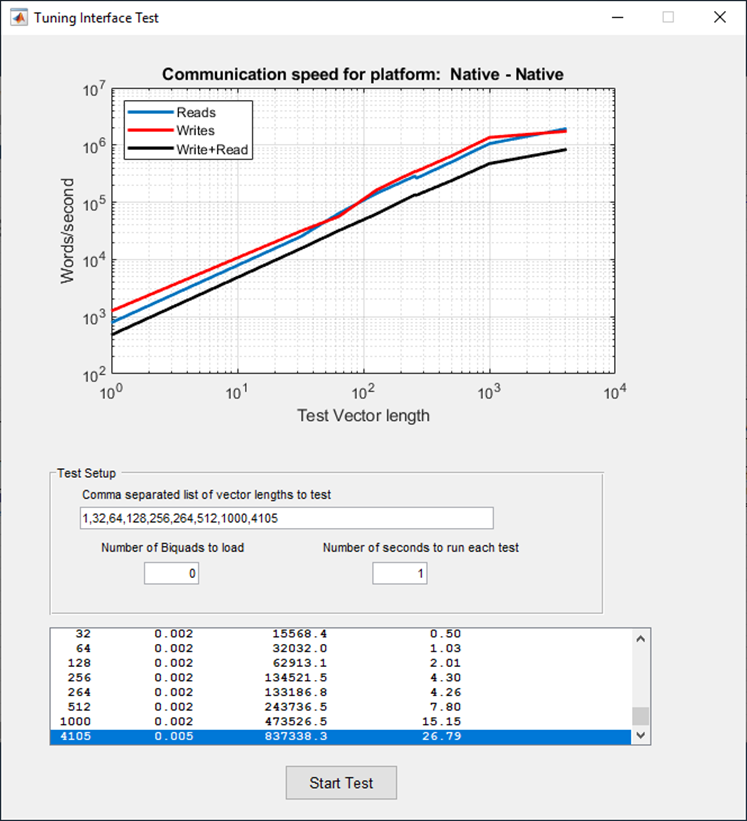
The test performs a series of Read, Write, and Read/Write commands over the tuning interface, with test configurations specified by the user. These configurations are modified in the Test Setup section, and are as follows;
-
Comma separated list of vector lengths to test
-
Number of Biquads to load
-
Number of seconds to run each test.
Flash Manager Tool
The Flash Manager tool, which is delivered as part of the AWE Server, enables users to easily add and remove Audio Weaver Binary files (AWB) on targets that support flash file systems. Once added to flash, the AWB file will be loaded by the AWE Core at boot-time and the target can run in stand-alone operation. See the next section ‘ Using the Flash Manager’ for instructions on how to do this.
Note that another alternative for stand-alone operation is to store the AWB contents in a C array and compile it into an application directly. This method can be used on targets with or without a flash file system. For more information on this, see the Runtime Library Integration and Flash File System sections.
Using the Flash Manager Tool
- Generate an AWB file for your desired Audio Weaver design (AWD ) in Designer by going to ‘ Tools - > Generate Target Files’.
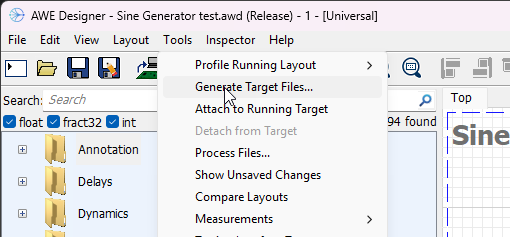
- Select ‘AWB’ target file type and choose the directory to which the AWB file will be saved. Change the ‘Basename’ field to a name that is less the 16 characters, then hit the “Generate” button.

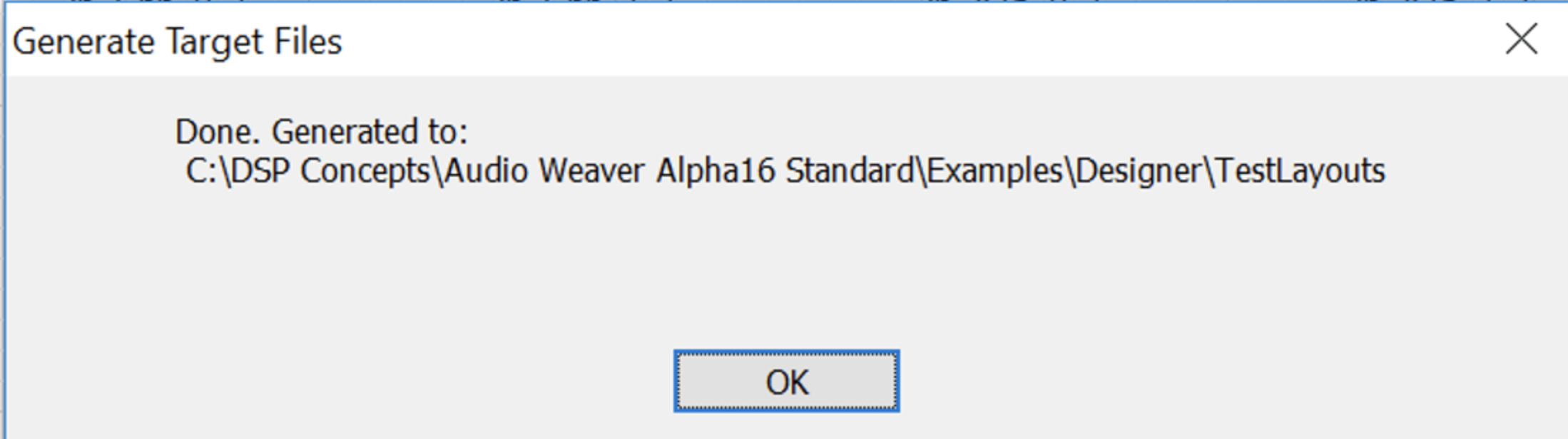
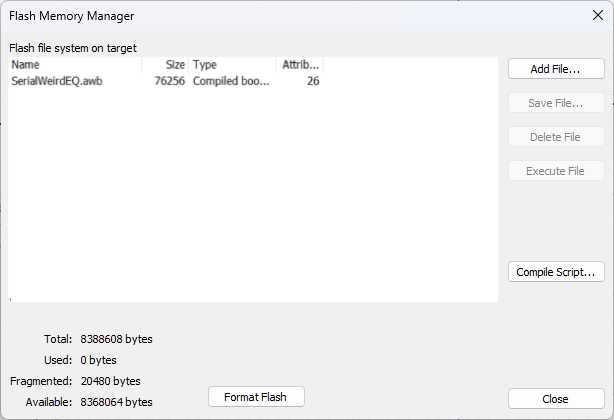
- Once the AWB file has been successfully generated, the following window will appear:
-
In AWE Server, select ‘ Target - > Change Connection’ and connect to your target with the appropriate option.
-
In AWE Server, select ‘Flash - > Flash Manager’. Then press “Add File” button.
-
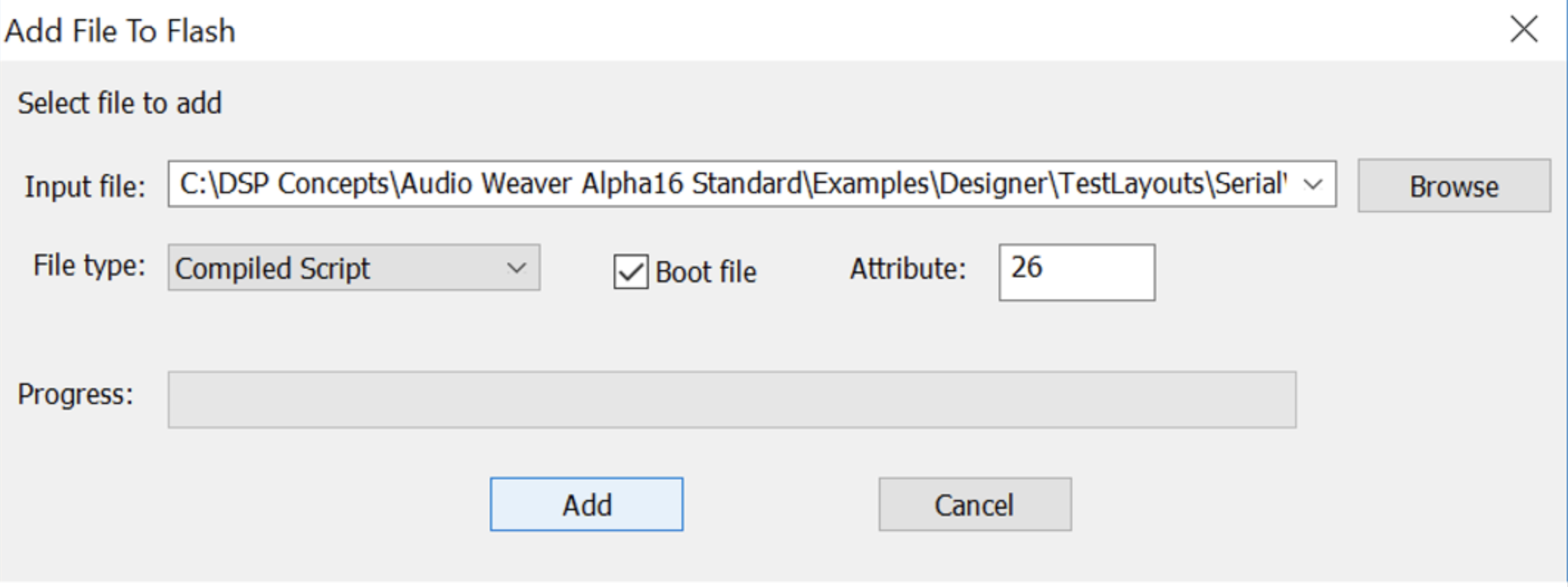
Browse to the previously-created AWB file and select it as the input file. Ensure that the file type is “Compiled Script” and check the box next to “Boot file” to designate this file to be used at boot-up (attribute = 26). Click the “Add” button to load the file into memory.
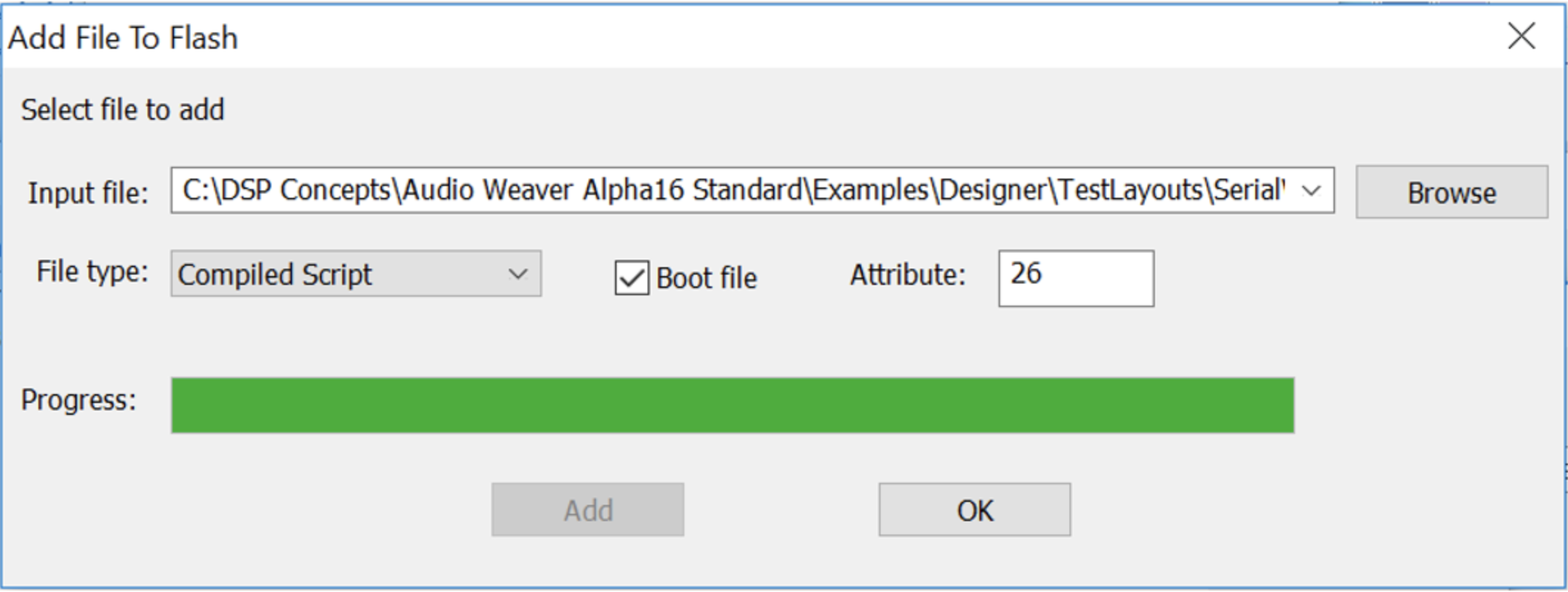
- Once the progress completes, click “OK”.
- After the file has been added, it will show up in the list “Flash file system on target” in the Flash Manager window. When you reset your target hardware and reconnect AWE Server to it, you should see a non-zero CPU % and heap allocated in the AWE Server, which indicates that the layout is indeed running.
Overflow Detection
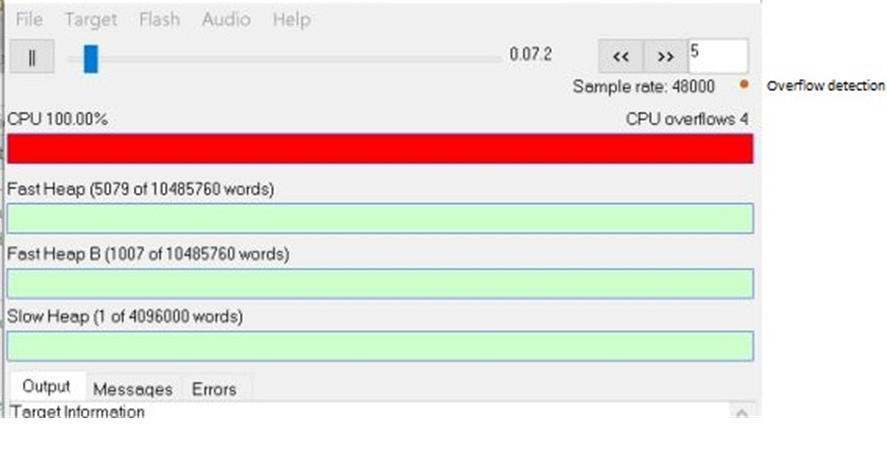
On certain targets, AWE Core will detect any overflow conditions while a layout is running and present this information in AWE Server. The overflow logic is capable of detecting overflows in any of the sublayouts in a multi-rate layout.
Overflow Scenarios
Scenario 1: When the CPU load on one of the instances > 100%
-
This increments overflow_cnt in the overflowed thread on that instance. This is the count displayed in the Server overflow count (accumulated from all threads in an instance) and in the log message per thread.
-
This scenario triggers reset logic and increments resetCount in the SystemVariable module, if one exists in the layout.
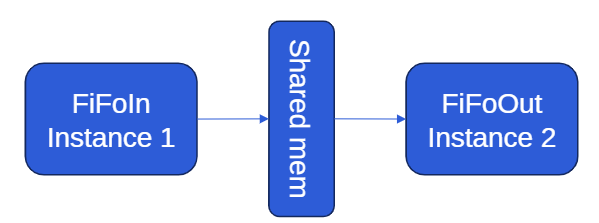
Scenario 2: FiFoIn and FiFoOut in the ChangeThread module go out of sync
-
Audio Pump may be delayed on any instance due to other system events. This is not considered a real overflow and doesn’t increment overflow_cnt.
-
This scenario triggers reset logic and increments resetCount in the SystemVariable module, if one exists in the layout.
When an overflow is detected, the AWE server is notified through the tuning interface, and the following indicators are updated in AWE Server.
-
The CPU usage progress bar will turn Red, indicating that either scenario 1 or 3 described above has happened. If the overflow condition is transient in nature, it is possible that the cpu bar may not show this condition.
-
The overflow detection LED (red dot) in the top right corner turns ON. The LED will stay ON until the Design is stopped, thus alerting the user of the overflow in the current run.
-
The CPU overflows counter on the top right corner counts the number of overflows detected across the layout (including clock divided sublayouts) until the Design is stopped. This count indicates that one or more overflows happened since the last time AWE Server queried the target for profiling values (by default this is done at 10 Hz). In theory the server could have missed some overflow events occurring at the target between the last query and the current query. As a result, this counter may not reflect the exact number of overflows occurring on the target.
Note
The Overflow feature is most accurate in embedded AWE Core targets, but CPU loading and actual number of overflows may not be correct in extreme circumstances; highly buffered applications with spiky CPU usage for example. CPU overflows on the Native target will be least accurate because of thread / CPU interaction outside of the control of AWE Server. Using CPU affinity to increase the accuracy of this feature for AWE Core OS targets is described in Profiling in AWE Tips and Tricks.
Process Files Tool
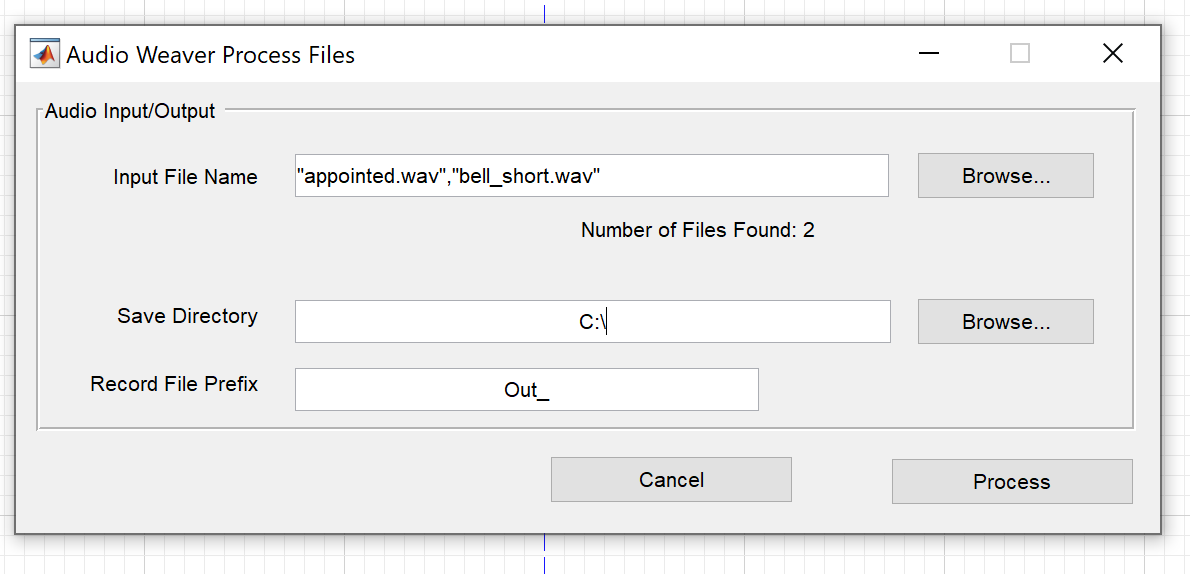
The Process Files tool can be used to process audio files through a layout and record the output as WAV files. The tool accepts MP3 and WAV files as input, but always generates a WAV file as output (even if an MP3 file is provided).
The tool is opened with the Audio Weaver Designer Tools->Process Files menu item.
Info
Note: The Process Files tool cannot be used when connected to an external target, and is only supported in Native mode.
The tool accepts multiple audio files as input, and is thus useful for batch processing audio files. The tool is designed to process data faster than in real-time, making it convenient for verifying the output of larger layouts/many files.