Audio Weaver Designer Licensing System
Audio Weaver Designer uses an online, machine-based licensing system, meaning each license can be activated on a single developer workstation at a time. To allow temporary offline usage when internet access is not available, Audio Weaver Designer also has a built-in grace-period where it can operate for several days without an internet connection. In the case where internet is not available for extended periods, or a firewall cannot be modified to allow online access, then node-locked offline-licenses are available to support fully offline access.
Creating a DSP Concepts Account
You will need a DSP Concepts Account to use and manage your licenses. If you do not already have an account you can register for one here. Once registered you will be able to see and interact with any licenese that have been assinged to your email including those assigned before account creation.
Obtaining a License
- Create an account at dspconcepts.com/user/register.
- Contact info@dspconcepts.com to purchase a license. A free 30 day evaluation license for Audio Weaver Designer Standard Edition may be obtained by request.
- Download the appropriate Audio Weaver Designer edition at dspconcepts.com/downloads.
For questions or purchase information for both evaluation and non-evaluation licenses, please contact info@dspconcepts.com.
Managing Your Licenses
Your assigned licenses are viewable in the license dashboard. From here you can view your licenses, retrieve activation keys, and deactivate a license from a device.
Viewing Licenses and Retrieving Activation Keys
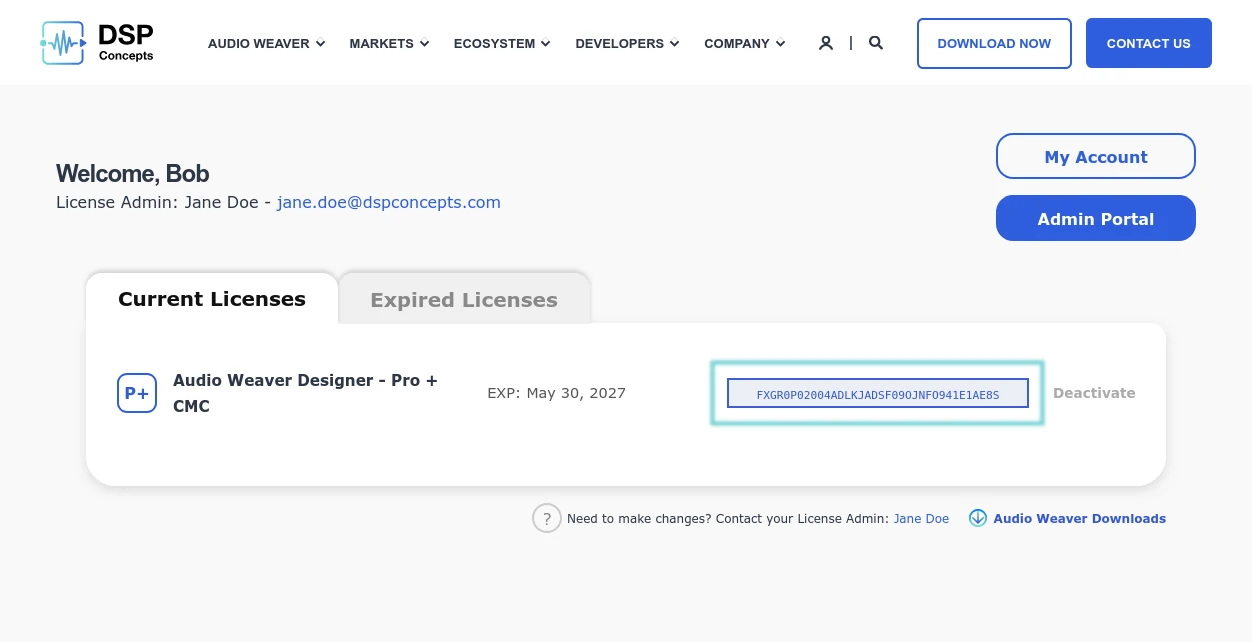
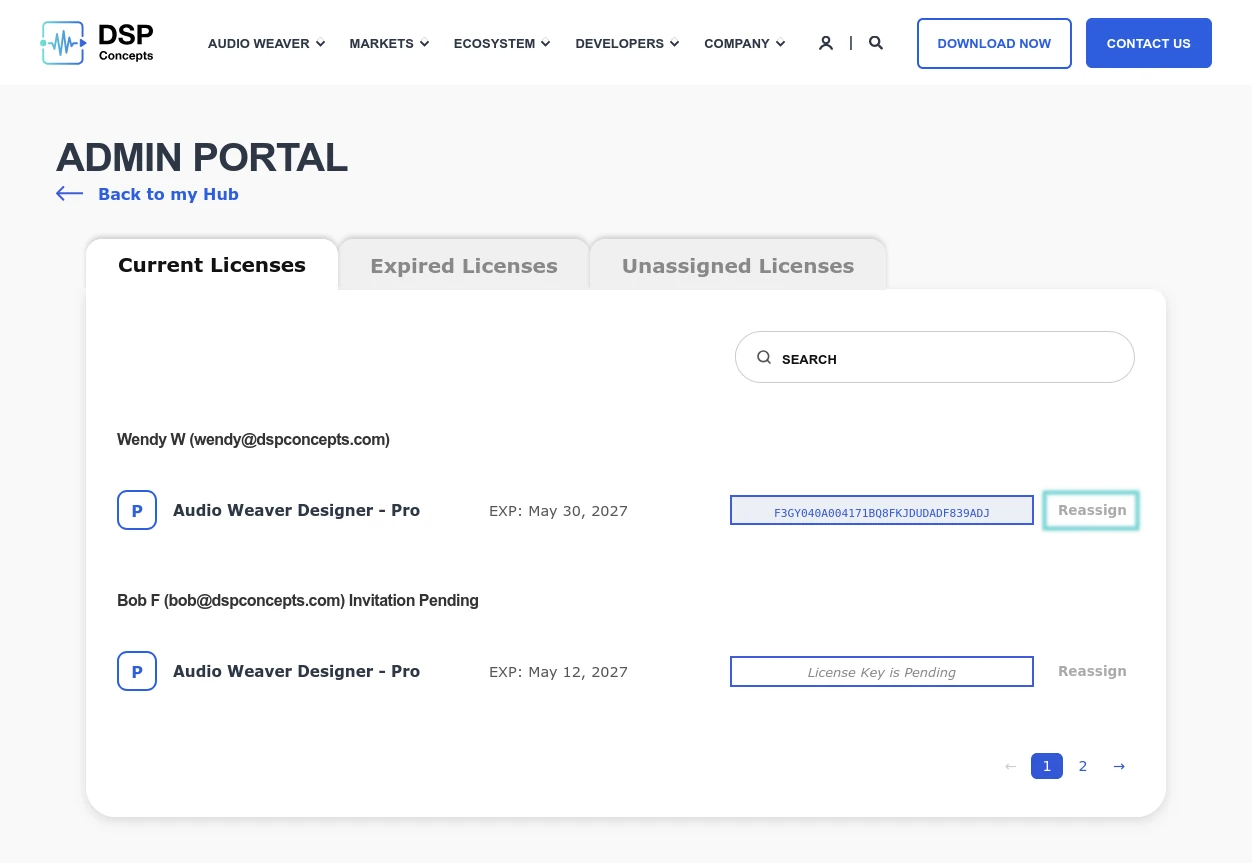
The license dashboard has two main tabs. First is the "Current Licenses" tabs that displays all valid licenses assigned to your account. The second tab is "Expired Licenses" which displays all expired and revoked licenses for your record.
Displayed next to each license is the Activation Key. Simply click it to copy to your clipboard.
Deactivating a License Via the License Dashboard
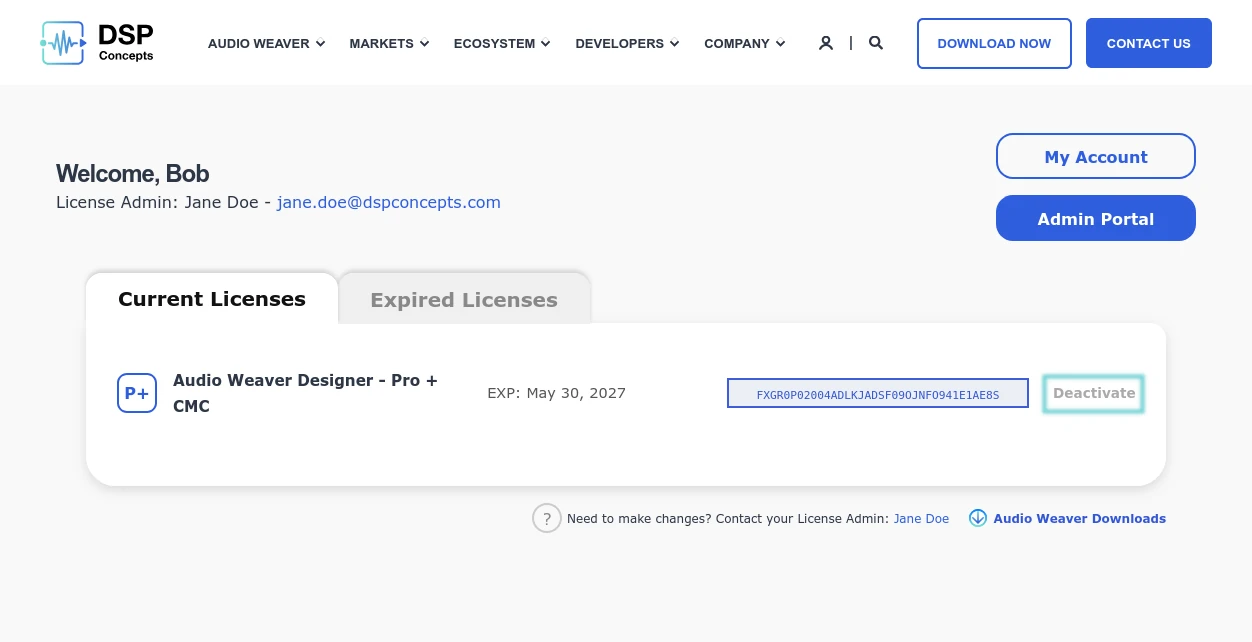
If you lose access to your computer or are working with a version of designer prior to 8.2026.1 it may become necessary to deactivate a license via the License Dashbord to free it up for use on another machine. To do so click the "Deactivate" button and confirm the deactivation.
Warning
This will immediately remove access to Audio Weaver Designer from the associated computer.
Activating a License in Audio Weaver Designer
Licenses can be active on a single PC at a time. To activate a given license:
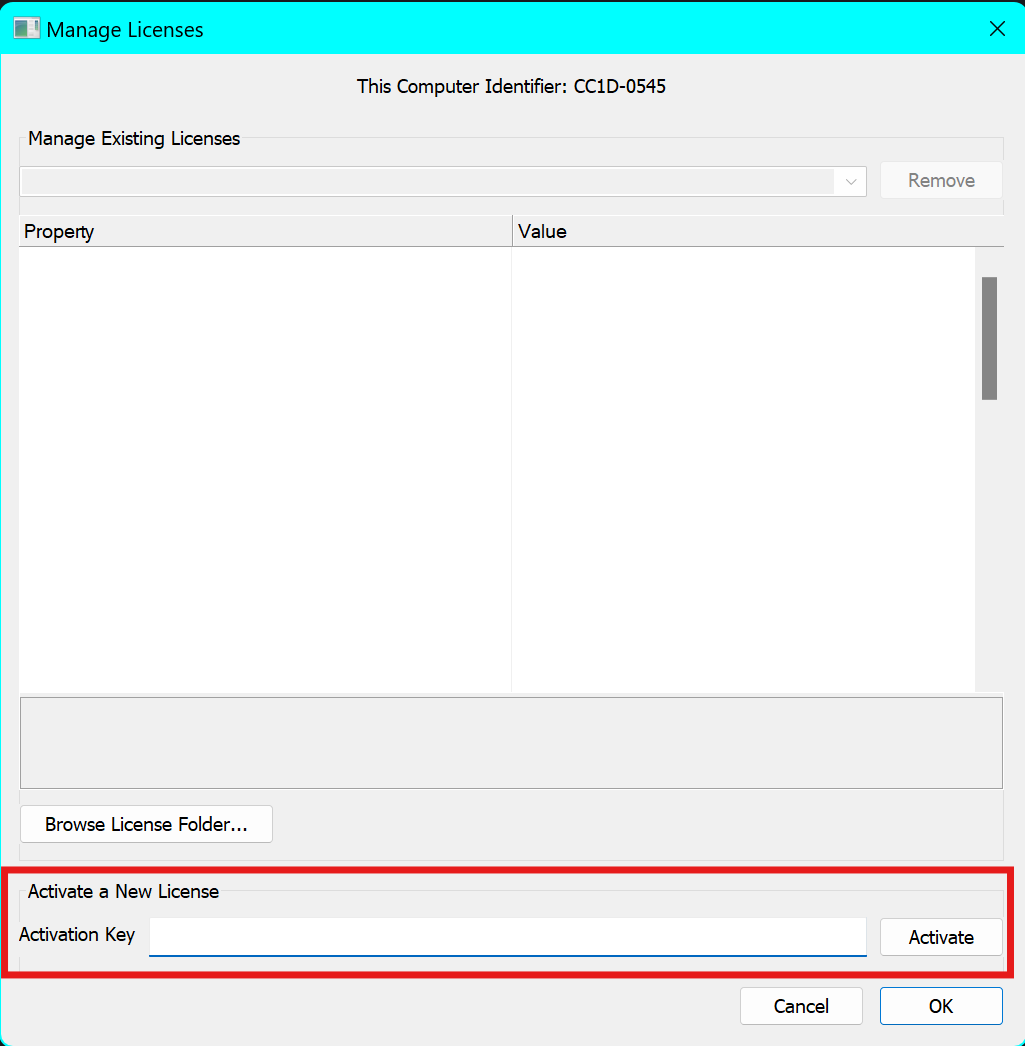
- In AWE Server, click "File --> Manage Licenses..." to open the License Manager.
- Paste the activation key into the text box labeled "Activation Key".
- Click the "Activate" button.
Pre 8.2026.1 Versions
Licenses can be activated with versions of Audio Weaver Designer prior to 8.2026.1. Input your account email as normal and the activation key as the password.
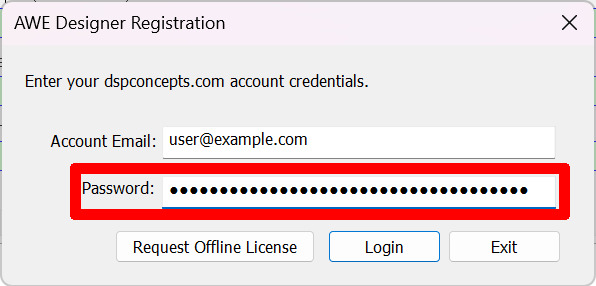
Licenses activated this way can be deactivated via the license dashboard.
License Administration
Note
This sections is for license administrators. Your administrator can be found on your license dashboard.
When seats of Audio Weaver Designer are purchased, they are granted to a designated account on dspconcepts.com. This account-holder serves as the License Administrator for the licenses, assigning them to individual developers' accounts. (The License Administrator may also be a developer and assign themselves a license.)
To administer a license navigate to the license administration portal.
Assigning a License
To view your unassigned licenses, navigate to the "Unassigned Licenses" tab in the license portal. Here each available license is presented in a list. To "Assign" next to a desired license to assign it to a user.
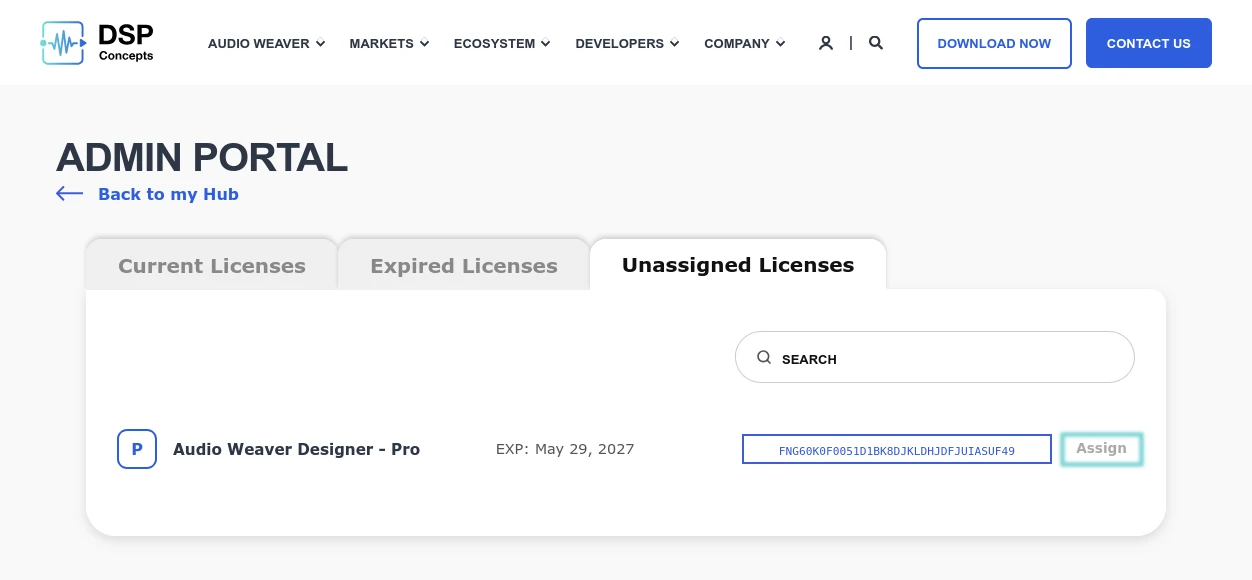
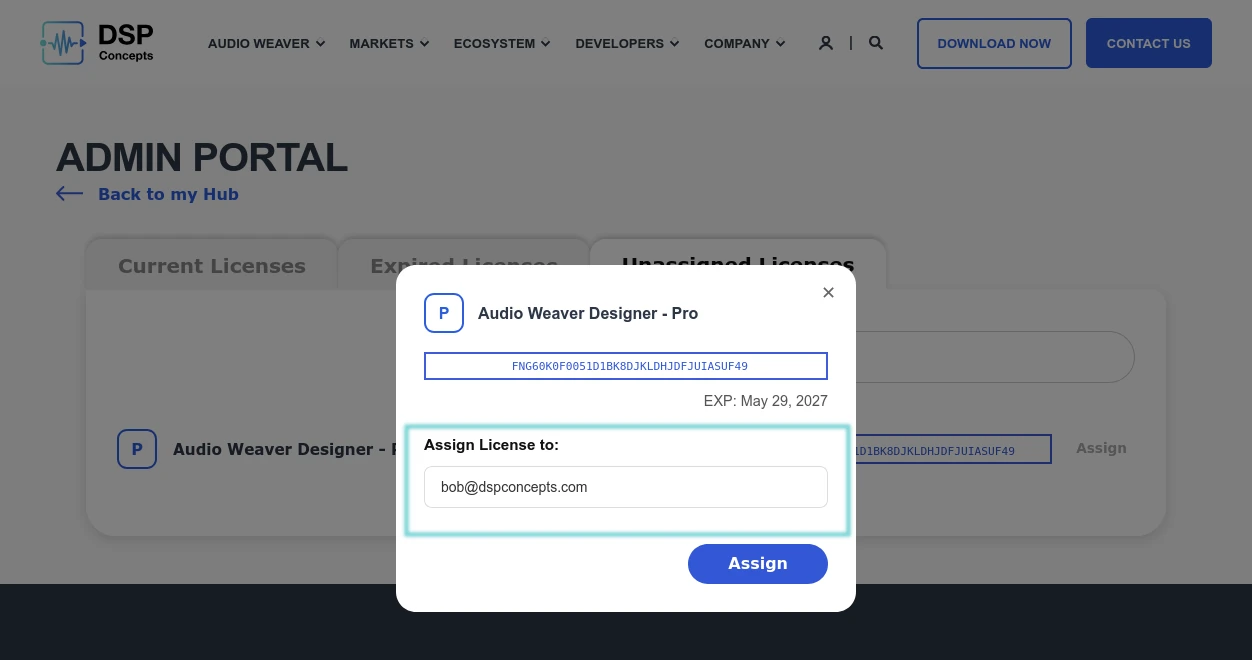
You will be presented with a dialog where you can enter the email of the Assignee. If they have an existing acount the license will be added to their portal. If they do not yet have a DSPC account an email will be sent inviting them to create one. Once the account is created they will be able to access the license in their portal with no additional action required.
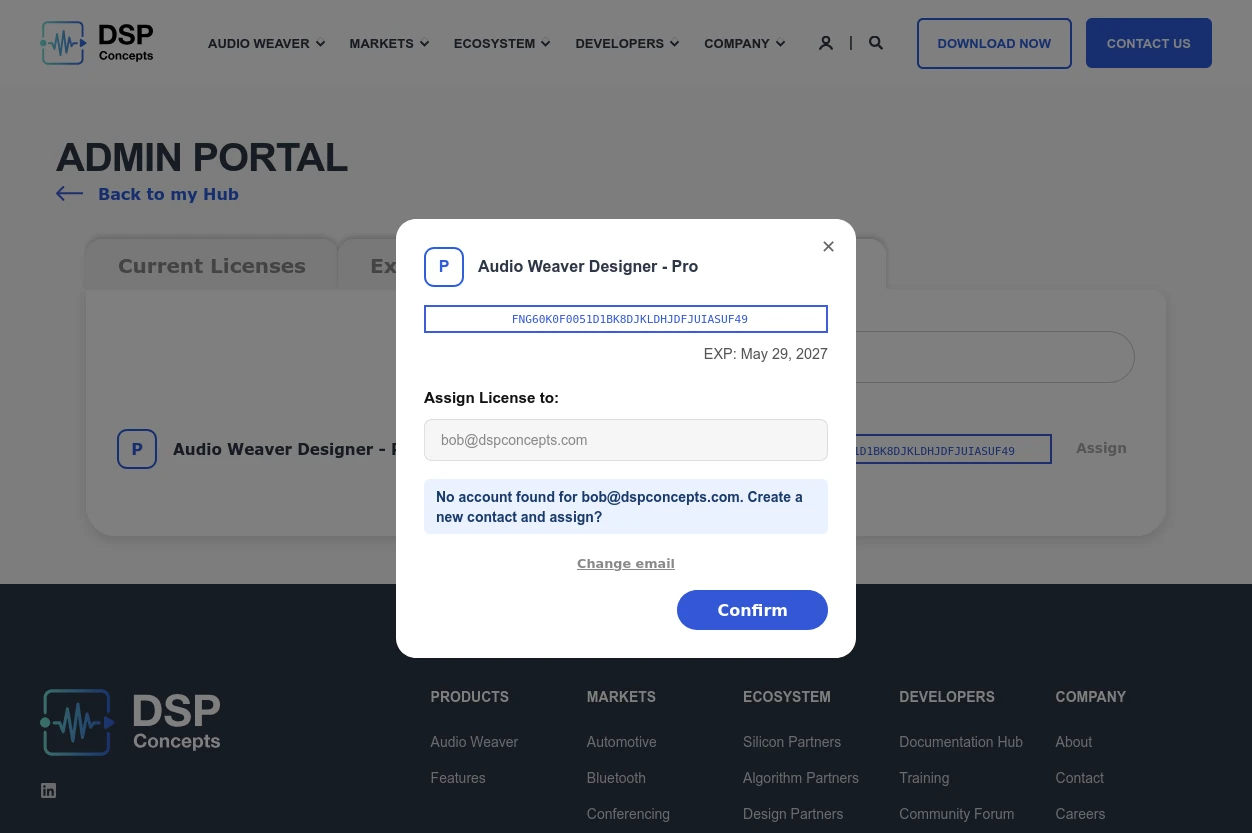
You will be asked to confirm the email and told if the email is already associated with your DSPC organization. If everything looks correct press confirm, otherwise you can cancel and change the contact email.
Reassigning Licenses
Warning
Reassigning a license will immediately deactivate it for the current user. This will revoke their access to Audio Weaver Designer.
The process for reassigning a license is similar to normal assignment. From the main "Current Licenses" tab click "Reassign" next to the license you wish to reassign. The remaining process is the same.
Firewall Whitelisting
Each time Audio Weaver Designer runs, it contacts the DSP Concepts Licensing Server to verify licensing status. For some users, this may require your IT department to add a firewall exception. Please add or request the following be added to your firewall's whitelist:
- Domain:
*.dspconcepts.com - Ports: 80, 443
Offline Licensing
To support temporary offline use, there is a short grace-period where Audio Weaver Designer can operate without contacting the licensing server. For the rare exceptions when internet access is unavailable for long periods or firewall settings cannot be changed, permanent offline access is available using a node-locked license.
To request an offline license:
- In AWE Server, click "File --> Manage Licenses..." to open the License Manager.
- Take note of your Computer Identifier.
- Send your Computer Identifier and your account email to licensing@dspconcepts.com.
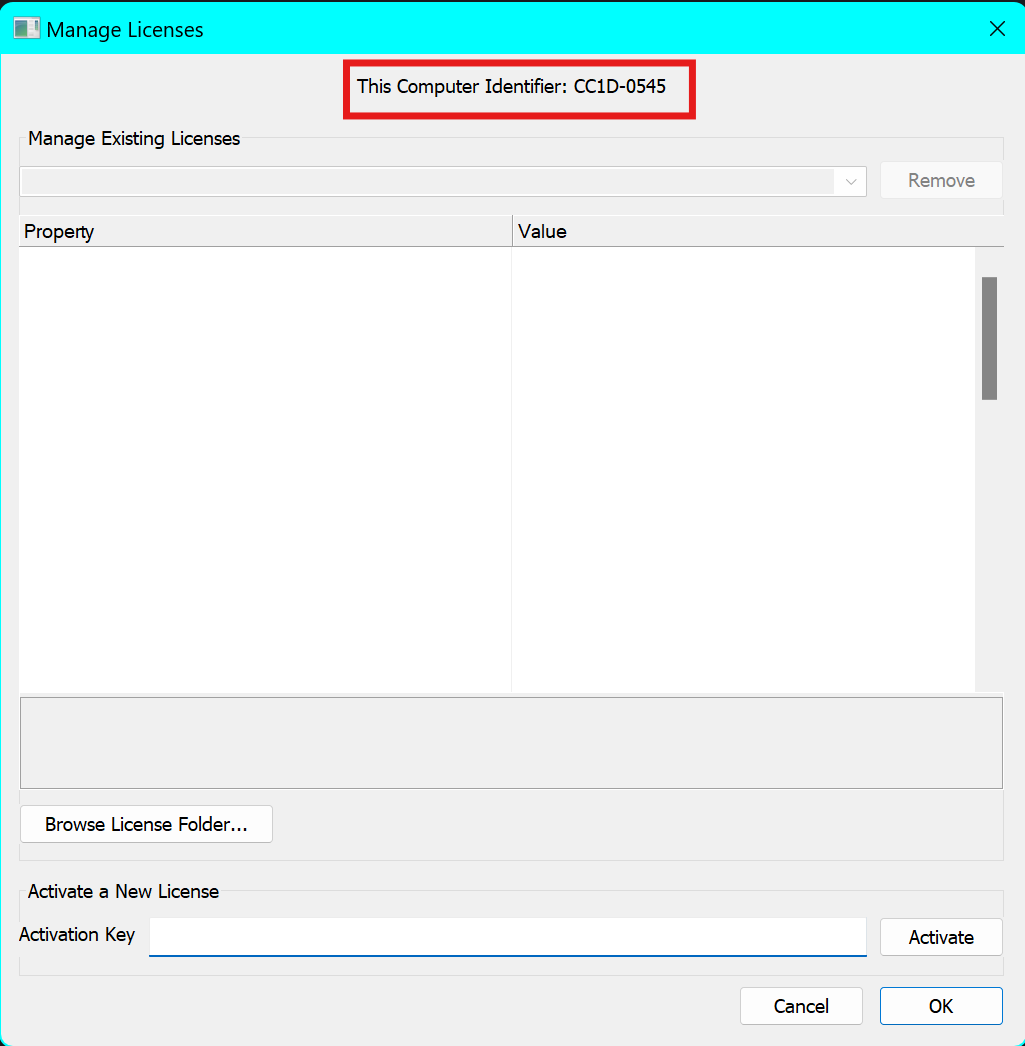
When you receive your offline license, copy it into the DSP Concepts licenses folder (%LOCALAPPDATA%\DSP Concepts\license) and restart Audio Weaver Designer.
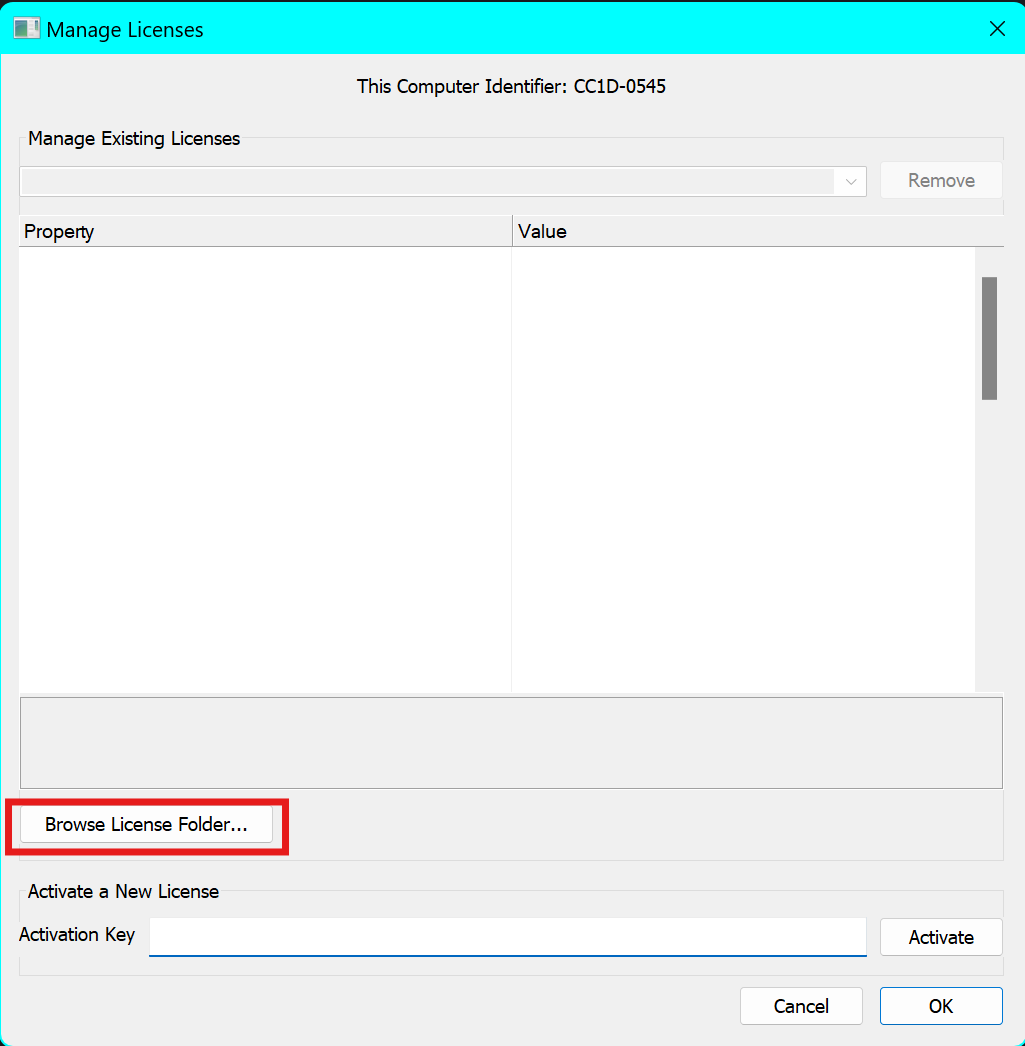
You can get to this folder either by pasting the aforementioned path into explorer, or by clicking the Browse License Folder... button in the license manager dialog.