Audio Library Manager Guide
Audio Library Manager
Audio Library Manager is a GUI tool used for creating a binary file (bin file) to be used to store AWBs. This tool enables the creation of a bin file that can include multiple files. Once generated, the bin file should be included the target Flash device's linker setup. [TODO - what else]
[TODO - say WHY someone wants to use this tool]
The Audio Library Manager Utility can be downloaded from this link: [TODO - add link]
Functionality
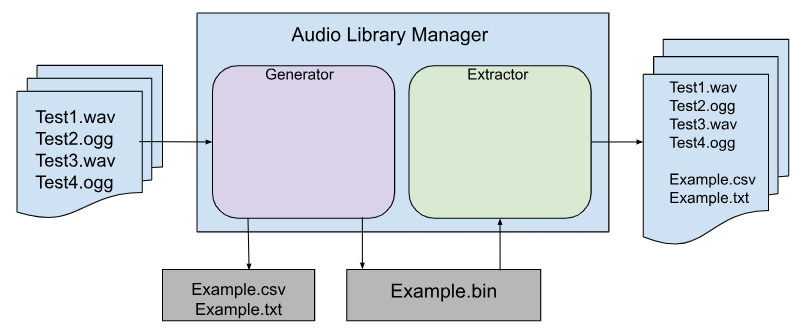 Audio Library manager
Audio Library Manager - Generator
Using the Generator
- Open the Audio Library Manager
- Add the audio files by ‘Add File(s)’ button
- If needed, adjust the order. Files closer to the top will load faster if you are changing file names while the layout is running.
- Click on 'Select Target Directory' then browse to the target folder.
- Type in ‘Target File Name’ as shown in the figure below.
- Press Generate.
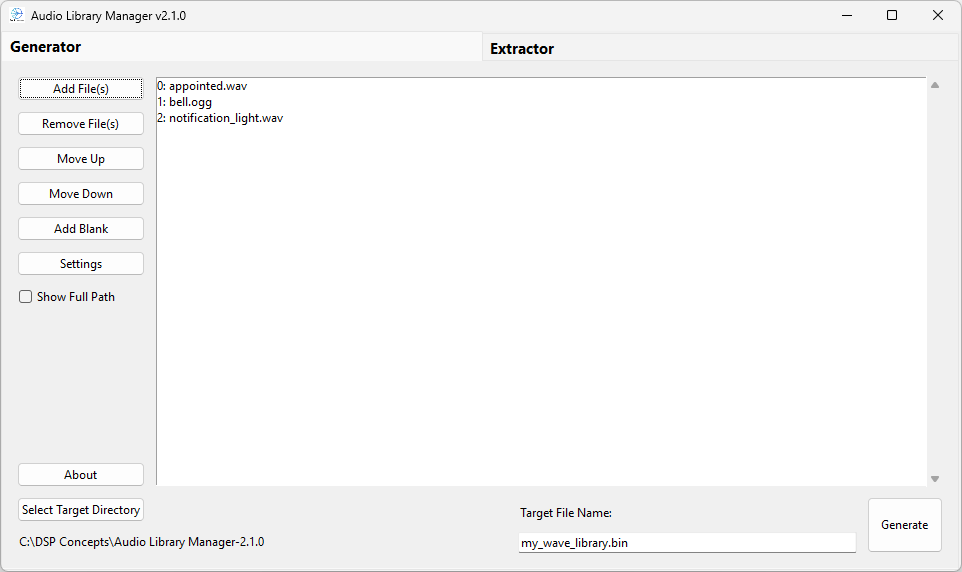 Audio Library Manager - Generator
Once successfully generated the GUI will show a “Successfully Created” window as shown below.
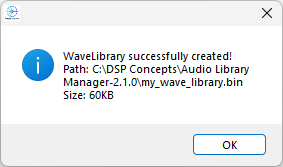
Wave Library Successfully Created
The output generated from the tool consists of a Binary file (.bin) with the selected Wav/Ogg files along with an encoded list of the file names in the order added in the tool window as .csv. If you are planning on changing file names in the TBD Modules at run time, load this .csv file into the TableSource module for index mapping to file names. See [TODO: link to app note] for details and an example. The generated txt file contains a list of the included audio files and is solely for documentation purposes.
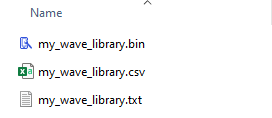 Audio Library Manager - Generated Files
The generated Flash_Player.bin file can be used an input for the Argument ‘FFSFileName’ in the File Mem BUffer module used with FFS Wave Players in Native mode. [TODO - verify]
 Using the Bin file in Native Mode via FFS Wrapper
Audio Library Manager - Extractor
The extractor side of the Audio Library Generator takes in a Binary file and extracts all the information and data within the file according to the user selection.
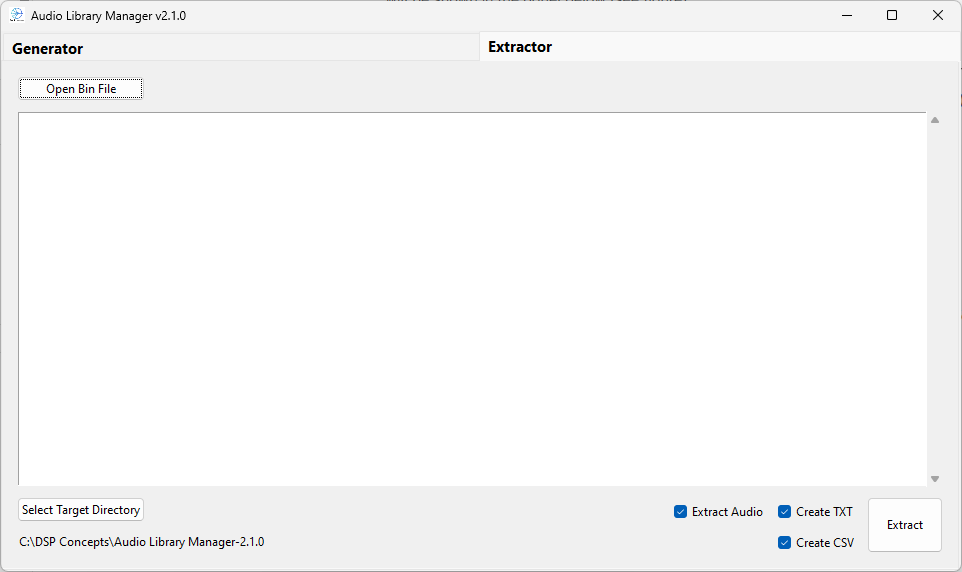 Audio Library Manager - Extractor
Press the ‘Open Bin File’ button to select a binary file for extraction. The Extractor window will show the files in the .bin file. Select the check boxes according to your needs:
- Extract Audio - extract audio files
- Create Txt - create a file documenting the audio files that were included in the wave library
- Create CSV - create a file containing the names of the audio files in the wave library in uint32 format for use in a TableSource module.
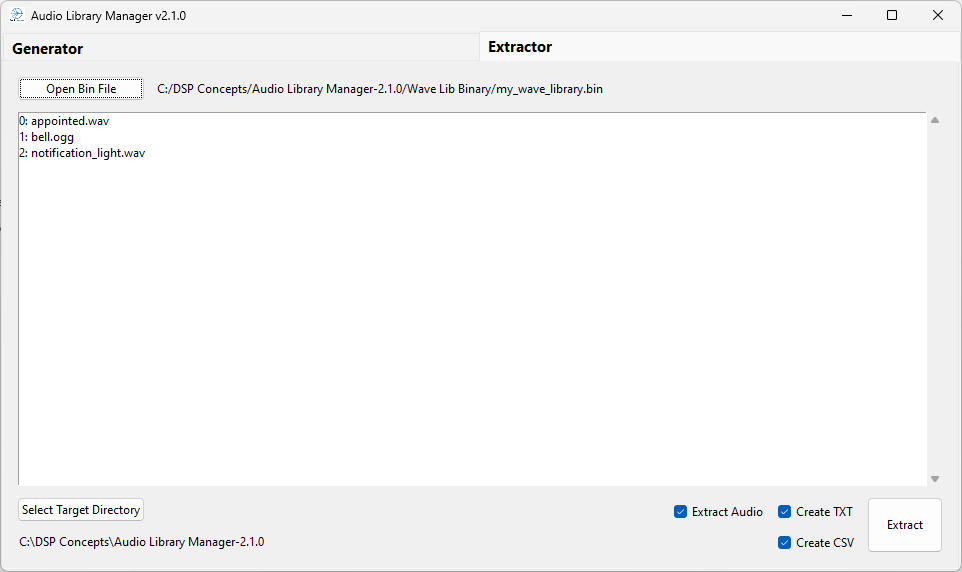 Extract selected files
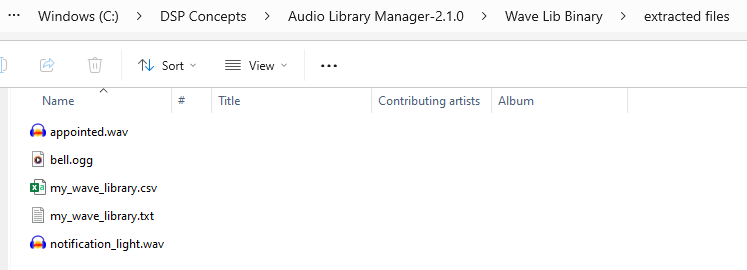 Extracted files