AWE Target Configurator (AWE-TC)

This document is currently under active development. Content may be updated, revised, or removed without notice.
AWE Target Configurator (or AWETC) is additional tooling which generates deployment files for the target SOC. AWETC is used by the System Integrator based on input from the Audio Engineer as shown below.
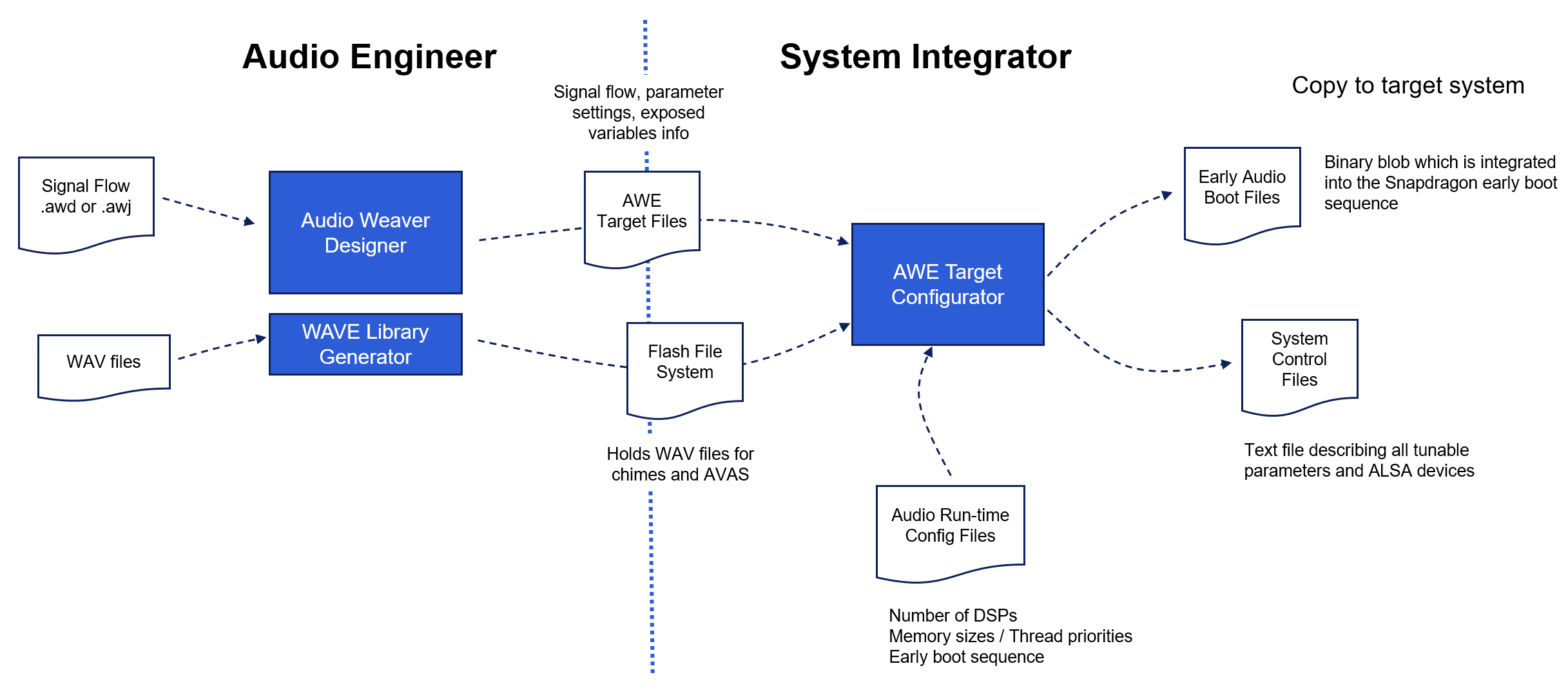
The Audio Engineer uses Designer and the Wave Library Generator to create the following artifacts:
-
Container file (.awc) for the top-level signal flow. Tunable variables are exposed using objectIDs.
-
Container file(s) (.awc) for any Subcanvases used. Tunable variables are exposed using objectIDs.
-
Flash File System (.bin) containing WAV files used by the Flash WAV players in the design.
The System Integrator then adds deployment specific information by editing YML files. This information includes:
-
Processor core and instance IDs
-
Processor speeds
-
Heap sizes
-
Thread priorities
-
Core affinities
-
Stack sizes
-
Logging and warning levels
This information is used by Audio Weaver BSP code to initialize each instance of the AWECore library in the system. If you need to make changes during development (such as increasing or decreasing heap memory sizes), then it is accomplished by editing YML files rather than writing code.
Setup and Installation
The Audio Weaver tools can be downloaded from this Box folder:
https://dspconcepts.app.box.com/folder/308070071270?s=yyjwu2kb7wkfaozk77vb1f0i479ah583
Look for the folder containing the DSPC release you have integrated. Inside a directory called ‘AWE-Target-Configurator’ you will find AWETC. Follow the instructions in the README file to install the AWE-TC Python packages on your PC.
Full Documentation
Once AWE-TC is installed including the doc package, the full documentation is available locally on your PC. Please execute to bring up the HTML documentation in your default browser application:
> awetc docs
Getting Started
After you have installed AWETC, you can check which version you have installed using, for example:
> awetc version
AWE-TC version: 0.5.1
If you see any version not following the major.minor.patch pattern for the version info, you are on a development version. Please contact DSPC.
To generate a skeleton project with all the files configured as a starting point, use
awetc init
This will create the folder and file structure:
_stages\deploy\
_stages\signalflow\
_stages\targetconfig\
The files generated are template files and come with reasonable default values.
Still, you need to edit the files in “signalflow” and “targetconfig”. Then awetc will generate files and store them in “deploy”.
The main files to edit are:
_stages/signalflow/config.yml- to link to your signal flow AWC output files. Generate those AWC file(s) with Designer - This file is typically the only file to edit!
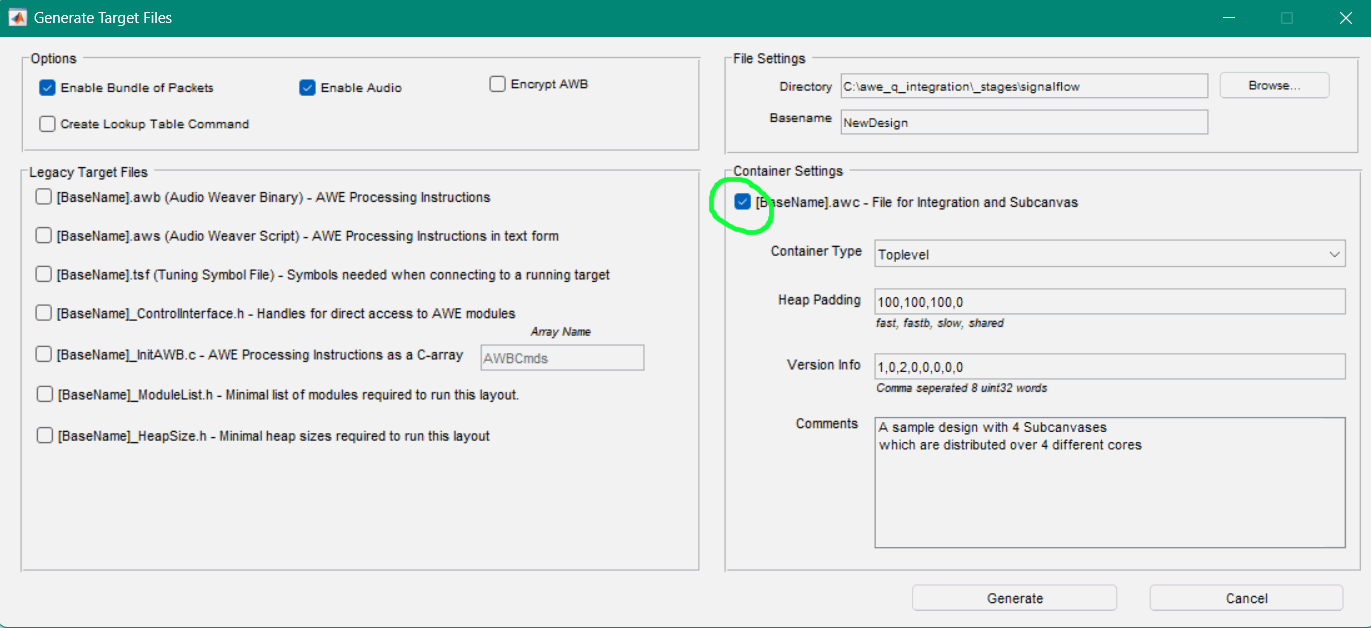
Generate a Designer export file for use with AWE-TC
-
_stages/targetconfig/awc_extensions.yml- to specify filters, alias names or additional data to be attached to modules and variables of your signal flow, required by system control -
_stages/targetconfig/awecore.yml- to edit audio block and heap sizes
After you have edited the YML files, the deployment files are generated with this command:
awetc
Typical output is as shown below
.  extract_awb
.  aweconfig_bin
-- hello
-- codegen_app
.  awemgr_awc:canvas-toplevel
.  gen_ffs             --> skipped: No FFS configured
Lines that starts with “.” indicate that a file was generated. Lines that start with “--” indicate no change.

It is recommended that you delete the contents of the _stages\deploy folder before running awetc. This ensures that no stale files remain from an earlier run. Alternatively, run awetc with --always-execute parameter.
The generated files can now be found in the _stages\deploy folder:
early_0_on_ADSP.awb         % AWB file to initialize the ADSP
early_1_on_GPDSP0.awb       % AWB file to initialize GPDSP0
early_2_on_GPDSP1.awb       % AWB file to initialize GPDSP1
3_on_ARM.awb                % AWB file to initialize the Arm processor
awc_index.txt               % Control information to initialize AWE Manager/Service
awe_config.bin              % Binary blob used during early audio
full_design.awb             % AWB file to initialize all processors

This list of files depends on your signal flow configuration and the list above may look a bit different for you when you run AWETC.
The bottom 4 files are most frequently used and you should copy them to the AWE-Q configuration folder of the target (/etc directory currently). The early_* AWB files are only for reference. They contain the instructions for the early audio processing and are part of awe_config.bin as well.
One way to copy them is via a useful batch file which configures ADB and pushes the files to the target as shown below. Put this in the same directory as the “_stages” folder and name it “push_all.bat”. After copying files, the target is rebooted and Audio Weaver is initialized with the new settings during the boot process.
adb root
adb remount
adb shell "mount -o remount,rw / && setenforce 0"
adb devices
adb push _stages\deploy\awc_index.txt /etc
adb push _stages\deploy\awe_config.bin /etc
adb push _stages\deploy\full_design.awb /etc
adb push _stages\deploy\3_on_ARM.awb /etc
adb shell sync
adb shell sleep 1
adb shell reboot -f
awc_index.txt is used by the AWE audio service to control modules and variables. This service initializes tinyplay and tinycapture with the information contained in awc_index.txt.

If you change control modules or you assign different object IDs in your signal flow, you need to regenerate the top-level container, push the updated awc_index.txt file to the target, and reboot the target.
Just building and running from Designer is insufficient.
This also applies, btw, when you update the ALSA modules in your signal flow.
During the boot process, the Hexagon DSPs log status information to shared memory. This information can be downloaded and displaying using the batch file check_log.bat shown below:
@echo off
adb wait-for-device
adb root
adb remount
adb shell "mount -o remount,rw / && setenforce 0"
adb shell awe_log_shmem
adb shell cat /data/awe_log_shmem.log
echo.
The main work is done by awe_log_shmem which writes the log information to the file /data/awe_log_shmem.log. This file contains about 100 lines and the last line is the most useful. It should show something similar to:
00:00:18.441518|awe_bsp.c |awe_child_pump_audio_thread | 3296 | The first time to pump audio on core: 2
This indicates that GPDSP1 successfully booted, was able to load its signal flow (AWB file) and that real-time audio interrupts have started. Check similar lines for the other cores.
Common System Configuration Changes
This section walks you through common changes to the YML files. It assumes that the starting point is the initial YML files generated by “awetc init” and highlights the changes necessary. It shows you the subset of lines in each YML file which need to be modified.

The processor booting logic used by early audio requires that the signal flow include processing for ADSP, GPDSP0, and GPDSP1 on the 8255. If you do not include modules for all of these DSPs, then Audio Weaver will not boot successfully and the Server will be unable to attach to the Snapdragon.
Changing the block size from 48 samples to 12 samples
AWD Signal Flow
Input TDM port is set to “Synchronous Aligned” with a block size of 12 samples.
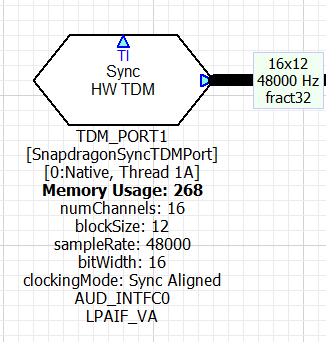
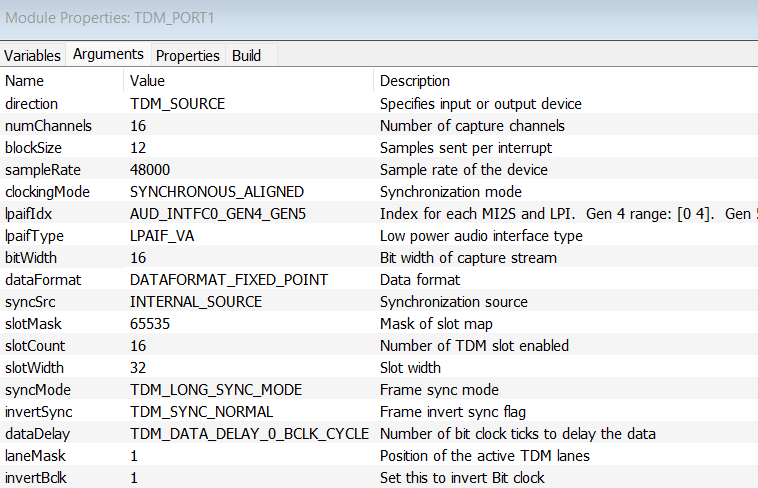
Output TDM port is set to “Synchronous Master” with a 12 sample block size
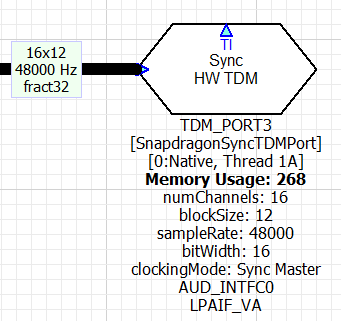
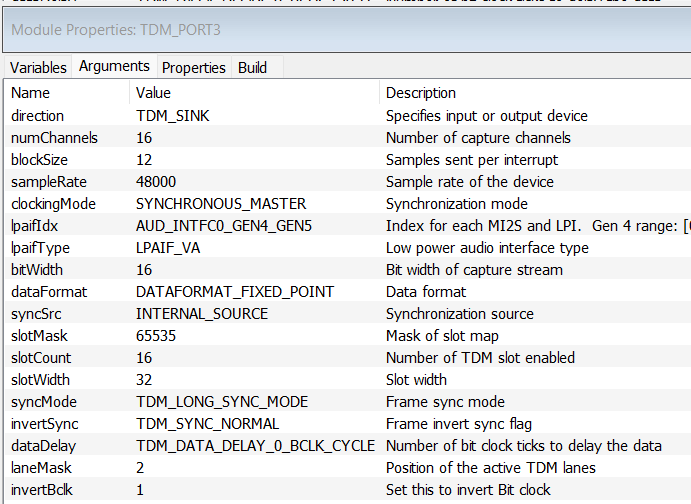
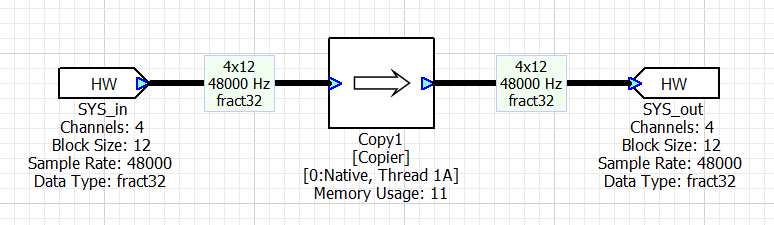
Hardware I/O pins are set to 12 samples
signalflow/config.xml

Note: This file always has to be changed and must point to the AWC files to be used. The change highlighted here is not specific for cutting down the blocksize from 48 samples to 12.
targetconfig/awecore.yml



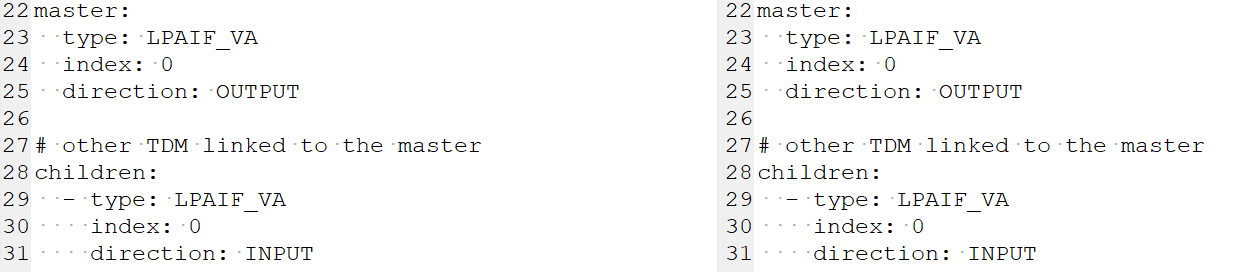
targetconfig/devices_tdm.yml
Note, there are no changes here but want to reinforce that the Synchronous Master device must be properly configured in this file and must match the settings in the signal flow. The Synchronous Master is the output device and using interface {LPAIF_VA, 0}.
Making GPDSP1 the Primary Audio Controller and 12 Sample Block Size
This example shows how to make GPDSP1 the “Primary Audio Controller” and host the Synchronous Master TDM device. The changes required are:
-
Set GPDSP1 to be instance 0 since the Primary Audio Controller must always be on instance 0.
-
Set ADSP to instance 1, and GPDSP0 to instance 2.
-
Make GPDSP1 have “is_primary = True” and all others “is_primary = False”
-
No changes to the signal flow since the TDM devices remain on instance 0
The deltas shown below relative to the previous 12 sample block size example.
AWD Signal Flow
No changes to the previous example showing 12 sample block size.
signalflow/config.xml
No changes
targetconfig/awecore.yml
targetconfig/devices_tdm.yml
No changes
Changing Which TDM Port is the Synchronous Master
The direction settings of the TDM input and output device in the signal flow must match the settings which is mentioned in devices_tdm.yml.
If your devices_tdm.yml mentions directory: OUTPUT for the master: configuration, but your signal flow is configured otherwise and you cannot change or modify the signal flow, then you need to change the settings in devices_tdm.yml:
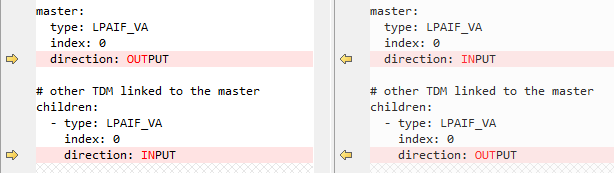
Re-run awetc to re-generate the output files.
Subcanvases and Presets
Your Toplevel signal flow may include Subcanvas modules. Each subcanvas module contains a complete signal flow and can be loaded and unloaded at runtime. To get a Subcanvas module supported in AWE-TC, it has to be part of the signal flow configuration.
Each Subcanvas configuration entry in the config.yml file has a name, a path pointing to the module instance in the Toplevel signal flow and a file path to its AWC file.
signalflow:
  name: Main
  awc: path-to-toplevel.awc
  sub_canvases:
    - name: AVAS
      awe_path: SubSys/SubcanvasModuleName
      awc: path-to-avas-signalflow.awc
    - name: RNC
      awe_path: Another_Path_to_SubcanvasModule
      awc: path-to-rnc-signalflow.awc
Every Toplevel as well as Subcanvas signal flow may require specific settings later to re-configure the audio processing behavior. This “skinning” of the signal flow is done via preset AWB files - read more about those here.
AWE-TC configuration lists the presets with a name and file path. Presets can be attached to Toplevel as well as to Subcanvas entries, for example:
signalflow:
  name: Main
  awc: path-to-toplevel.awc
  presets:
    - name: PlatformX
      awb: path-to-platformx-modifications.awb
    - name: PlatformY
      awb: path-to-platformy-modifications.awb
  sub_canvases:
    - name: AVAS
      awe_path: SubSys/SubcanvasModuleName
      awc: path-to-avas-signalflow.awc
      presets:
        - name: Avas_SettingX
          awb: avas-specific-platformx-modifications.awb
After awetc has been executed the list of files in the “deploy” folder will also contain the corresponding AWB files for Subcanvases and presets:
subcanvas_*.awb   % AWB files for Subcanvas modules
preset_*.awb      % preset AWB files for Toplevel and Subcanvas modules
After the files have all been pushed into the same directory in which awc_index.txt is stored on the target system (typically /etc), AWE Audio service or AWE-Manager Shell can use a Subcanvas or a preset-AWB by simply using their name, for example:
awemgr_shell> load_design -name AVAS
awemgr_shell> load_design -name Avas_SettingX
awemgr_shell> unload_design -name RNC

rc = awemgr_load_design(ctx_p, "AVAS");
rc = awemgr_load_design(ctx_p, "Avas_SettingX");
rc = awemgr_unload_design(ctx_p, "RNC");
Command Line Usage
AWE-TC builds on a task execution model. It is possible to run only specific tasks, by specifying the task name on the command line, e.g. awetc aweconfig_bin to run only the generation of the binary blob used during early audio. To view a list of available tasks use awetc list.
There are also generic commands to be executed, like the above mentioned awetc init. To get a list of supported commands use awetc help.
To see possible parameters a task or a command may have, use awetc help <taskname> or awetc help <cmd>, for example awetc help init.
Configuration File Contents
The behavior of AWE-TC is configured in YML files.
Once awetc init was executed, the YML files generated in the “signalflow” and “targetcfg” directories include comments. They already provide basic instructions.
Additional details, like for example which values are allowed in the configuration, is available in AWE-TC’s documentation shown with awetc docs.
The following table gives an overview of the files and the documentation links.
| File Location | Description |
|---|---|
_stages\signalflow\config.yml |
Specifies the container files which hold the top level system and subcanvases and presets. See discussions above and AWE-TC documentation Reference → Models → Designer Input Files |
_stages\targetconfig\awecore.yml |
Contains the bulk of the BSP configuration information such as how many audio DSPs there are, their heap sizes, etc. Basic.See also: Reference → Models → AWE Core instance configurations |
_stages\targetconfig\devices_tdm.yml |
Configures TDM devices. Basic. NOTE: This will be removed in R4.4. See also: Reference → Models → TDM Devices |
_stages\targetconfig\threads.yml |
Specifies thread priorities and core affinities. Advanced.Reference → Models → Threads |
_stages\targetconfig\cpucores.yml |
Names and numbers CPU cores. Typically not modified. Advanced.Reference → Models → CPU cores |
_stages\targetconfig\awc_extensions.yml |
Allows you to add meta data to tunable variable information, assign alias names, etc. Advanced.Reference → Models → AWC Extension |
_stages\targetconfig\codegen_app.yml |
Used to configure parameter control for application. Advanced. |
_stages\targetconfig\aweidl_mcu_chimeplay.yml |
Example for how to configure early chimes. Included from codegen_app.yml. Advanced. |
_stages\targetconfig\aweidl_mercury_playback.yml |
Example for how to configure parameter control. Included from codegen_app.yml. Advanced. |
_stages\targetconfig\modulelist_gpdsp.yml |
An example file how the a list of modules available on a DSP can be stored. Advanced.NOTE: currently not used; can safely be ignored or deleted again. |
Generated Files
As described above, AWE-TC mainly generates target configuration data for system control and for early audio or BSP configuration.
The following table describes each file in the deploy directory:
| File Name / Pattern | Purpose |
|---|---|
awe_config.bin |
Early Audio & BSP configuration file; a binary structure containing AWB data for each DSP and FFS (audio data) for early audio chimesIn a development system this is stored in the file system to “simulate” early boot behavior; it will be loaded into memory by a service called awe_command in production to be stored in a flash partition that will be mapped by the system to shared memoryStore on target! |
<X>_on_<CPU-Name>.awb ;typically 3_on_ARM.awb |
Part of the AWB data for late loading instructions; typically this is the AWB file to be applied by AWE Audio Service after booting has finished and HLOS is available.Store on target! |
early_<X>_on_<CPU-Name>.awb |
Part of the AWB data for a specific AWE instance number <X> on a specific <CPU-Name>. Ignore or delete! These files are only for reference and is part of awe_config.bin already. |
preset_<Preset-Name>.awb |
AWB data for a specific preset, as configured in config.yml (see example above)Store on target! |
subcanvas_<Subcanvas-Name>.awb |
AWB data for a specific Subcanvas signal flow, as configured in config.yml (see example above)Store on target! |
awc_index.txt |
The main “index” file for AWE-Manager (AWE Audio Service) for the system control.Store on target! |
awc_index-<Subcanvas-Name>.txt |
An alternative and optional AWE-Manager index file with the scope for just a specific Subcanvas. Can be used with AWE-Manager shell for testing access to Subcanvas’ variables.Not needed on the target! |
Advanced Features
Plug-ins
AWE-TC is separated into a "main" package and into plugin packages. A plugin package is used to extend AWE-TC’s functionality and can be written by anyone with a bit of Python knowledge.
The benefit of an AWE-TC plugin is that it is executed when it is required by any of the target file generation steps. Examples for (potential) plugins:
-
Deploy to Target - files generated by AWE Target Configurator can directly be pushed to a (connected) target device via ADB (Linux/Win) - this plugin is provided with AWE-TC already
-
Image Creator - This step could package the output files of AWE Target Configurator into an image file to update a flash partition of a device.
-
Signing - Customer's can hook their signing tools into AWE Target Configurator 's processing pipeline.
Tasks and Subcommands
AWE-TC is a “task runner” system. Tasks are organized in a task dependency tree, i.e., it is possible to define chains of tasks to be executed only when the dependent task needs to be done - similar to a Makefile.
For example, above the creation of the early audio configuration buffer (task = aweconfig_bin) required the extraction of (AWB) data from the AWC input files (task = extract_awb). Hence it was executed before.
.  extract_awb
.  aweconfig_bin
If you delete just the deploy/aweconfig.bin file and re-run awetc, you will notice that extract_awb was not executed again.
-- extract_awb
.  aweconfig_bin
Subcommands are functions that deal with the whole project, like awetc init or awetc docs
Additional Utilities
AWE Target Configurator package depends on other DSPC packages which also provide command line scripts available after the installation - in addition to awetc.
Run the commands with --help to get more information on how to use them.
-
awetc-aweconfig-dumper- Part of AWE-TC already this utility helps dumping and analyzing the contents of the Early audio config file (awe_config.bin). -
awc-file- With this script the AWC files can be analysed. It can dump any AWC data file to the console and also allows extraction of the AWB data. -
awb-file- This script can work with AWB files. Data can be retrieved or modified. -
awe-ffs- This script is a (lighter) command line version of WaveLibraryGenerator. You can use it (within AWE-TC or as standalone script) to create an FFS buffer without a Windows UI.
Also check awetc docs under Reference->Additional Scripts
Logging
AWE Target Configurator traces logging information to a file. It uses the Python logging module to store traces higher and equal to DEBUG level.
The file is generated in the user's data directory. This directory is obtained by AWE Target Configurator in the following order:
-
When environment variable
AWETC_USER_DATA_DIRis available it is required to point to a (writable) directory. -
Depending on the platform either
XDG_DATA_HOME(Linux) orAPPDATA(Windows) will be used. -
The
HOMEdirectory of the user will be obtained and the following paths will be used:- Linux:
~/.local/share - macOS:
~/Library/Application Support - Windows:
C:/Users/<USER>/AppData/Roaming
- Linux:
The log file will be written into the above directory. It will be overwritten with every call to awetc.
DOC-INTERNAL - TODO/CHKLIST
-
AWE Target Configurator has the basics
- We need a few sections filled out (like Events, Subcanvas)
-
Installation
-
Need detailed “tell me all the details” documentation [Volker]
-
High-level description of AWE-TC, tools, and workflow
-
Various yaml configuration (awcore.yml, tdm yml etc.)
-
Examples and basic walkthrough
-
Control params with command line
-
Set/Get control var/scaler/error code
- Using AWE Manager shell
- Using C
- Using tinymix
-
Events
-
Do we have BSP commands to document?
-
Pointer to AWE-TC Reference guide
-
Advanced configurations
- SubCanvas
-
Debugging configuration issues