Connect to Remote Server
Connect to Remote Server
Designer can be connected directly to a remote server, omitting the local AWE Server. A use case for this would be our AWE_command_line application for Linux. The AWE_command_line app contains a built in, GUI-less AWE Server. In this case, a user could omit the use of the Win32 AWE Server and connect Designer directly to the Linux target. Another use case is connecting Designer to a win32 AWE Server running on another PC.
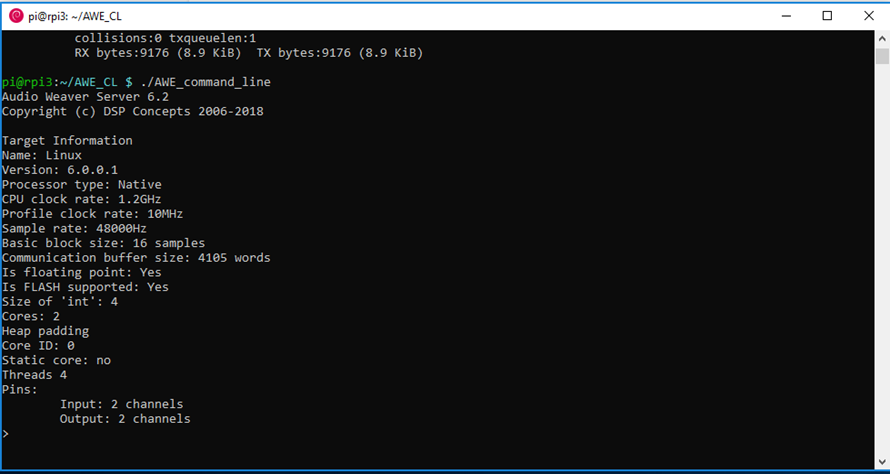
- Start the AWE Server on your Target. This can either be a local AWE Server on another PC or something like AWE_command_line. Make sure you know the IP or hostname of your target that’s running the server.
- Open the Global Preferences window from the file dropdown menu
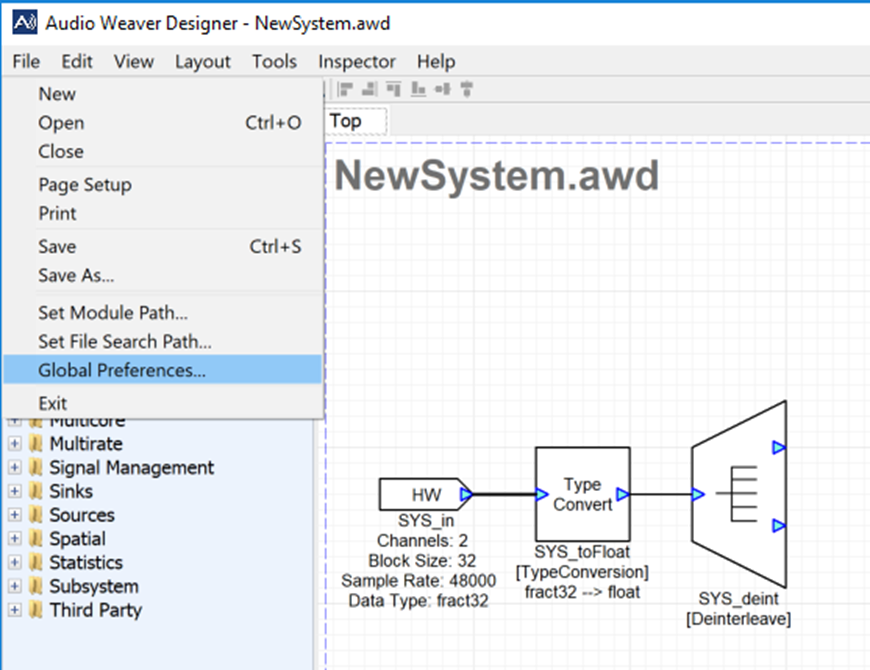
-
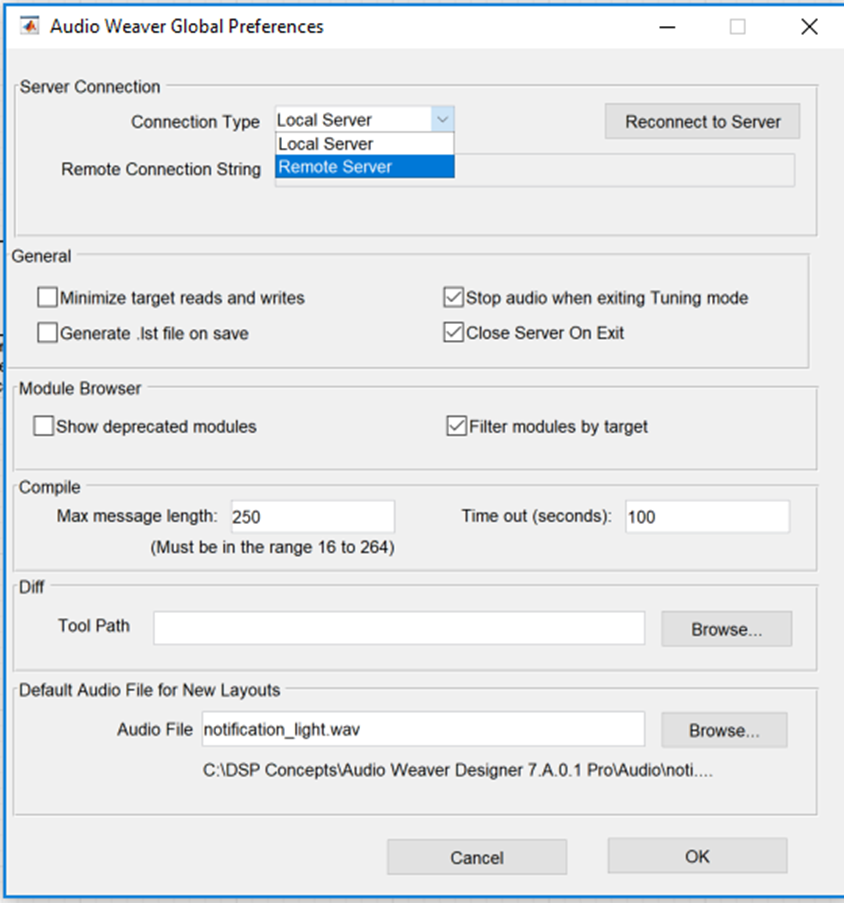
Switch the “Connection Type” dropdown from Local Server to Remote Server.
-
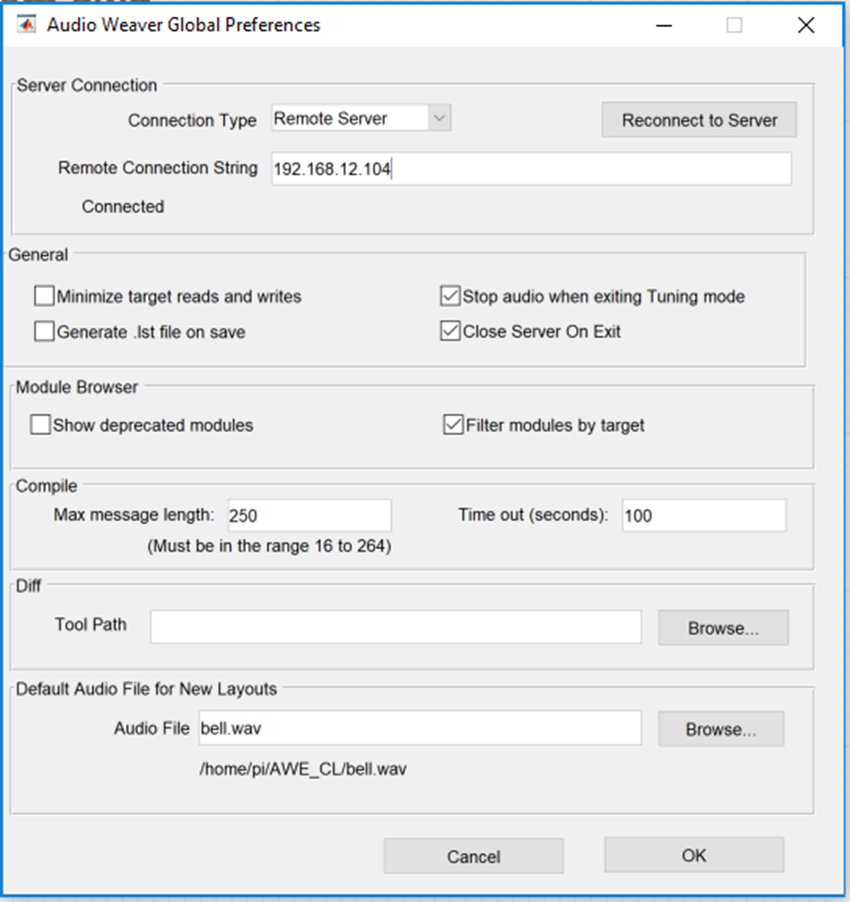
Enter the IP or hostname of your remote target. The click “Reconnect to Server”
- If a successful connection is made, you will see a “Connected” string appear under your remote connection string. You will also notice that the default Audio File path has changed to your target’s filesystem.
- Now you can run your Designer layout on your remote target as if you were connected to a local target.